Microsoft Active Directory
Overview
Microsoft Active Directory (AD) is a directory service developed by Microsoft for Windows domain networks. It provides central authentication and authorization for users, computers, and other resources in an on-premise environment. Integrating Active Directory with Sekoia.io allows for the synchronization of users to enhance security analysis and alert context.
- Vendor: Microsoft
- Product: Microsoft Active Directory
- Supported environment: On-premise
Configure
Prerequisites
To connect your on-premise Active Directory to Sekoia.io, ensure the following requirements are met:
-
Service Account: A dedicated service account with read-only permissions.Recommended: Create a least-privilege account
Instead of using an admin account, create a dedicated service account with minimal permissions:
- Open Active Directory Users and Computers
- Create a new user account (e.g.,
svc-sekoia-sync) - Right-click on the OU containing your users → Delegate Control
- Add the service account and select Read all user information
- Apply to the relevant OUs containing users
This account only needs:
- Read permissions on the Users container (or specific OUs)
- Read All Properties on User objects
- No write, delete, or modify permissions
-
Network Connectivity: Ensure port 636 (LDAPS) is open between your network and the Sekoia.io ingestion point to allow secure communication.
Create connector configuration
This connector utilizes the LDAPS (LDAP over SSL/TLS) protocol to ensure that your credentials and directory data remain encrypted during transit.
A key requirement for this configuration is the Base DN, which defines the starting point for the directory search.
Base DN: This identifies the specific container or domain level where the connector starts looking for users.
Example: OU=Users,DC=company,DC=com
Warning
Ensure that the account used has a password that does not expire, or remember to update the connector settings in Sekoia.io whenever the password is changed, otherwise the synchronization will fail.
Create your asset
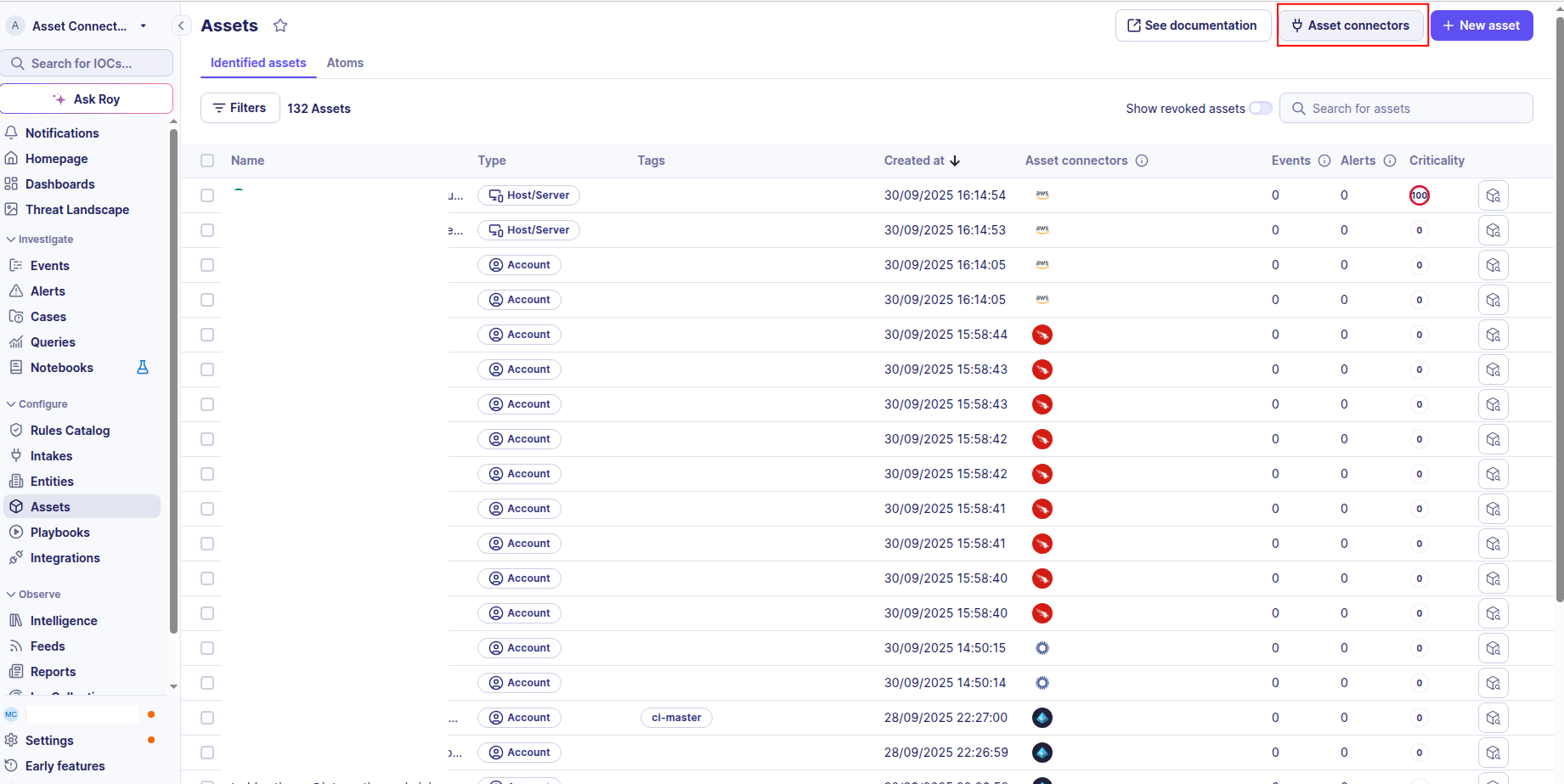
To start getting your Microsoft Active Directory users into Sekoia.io, you need to create an asset connector on the Assets page. To do so, follow these steps:
-
Click the Asset connectors button to create a new connector.
-
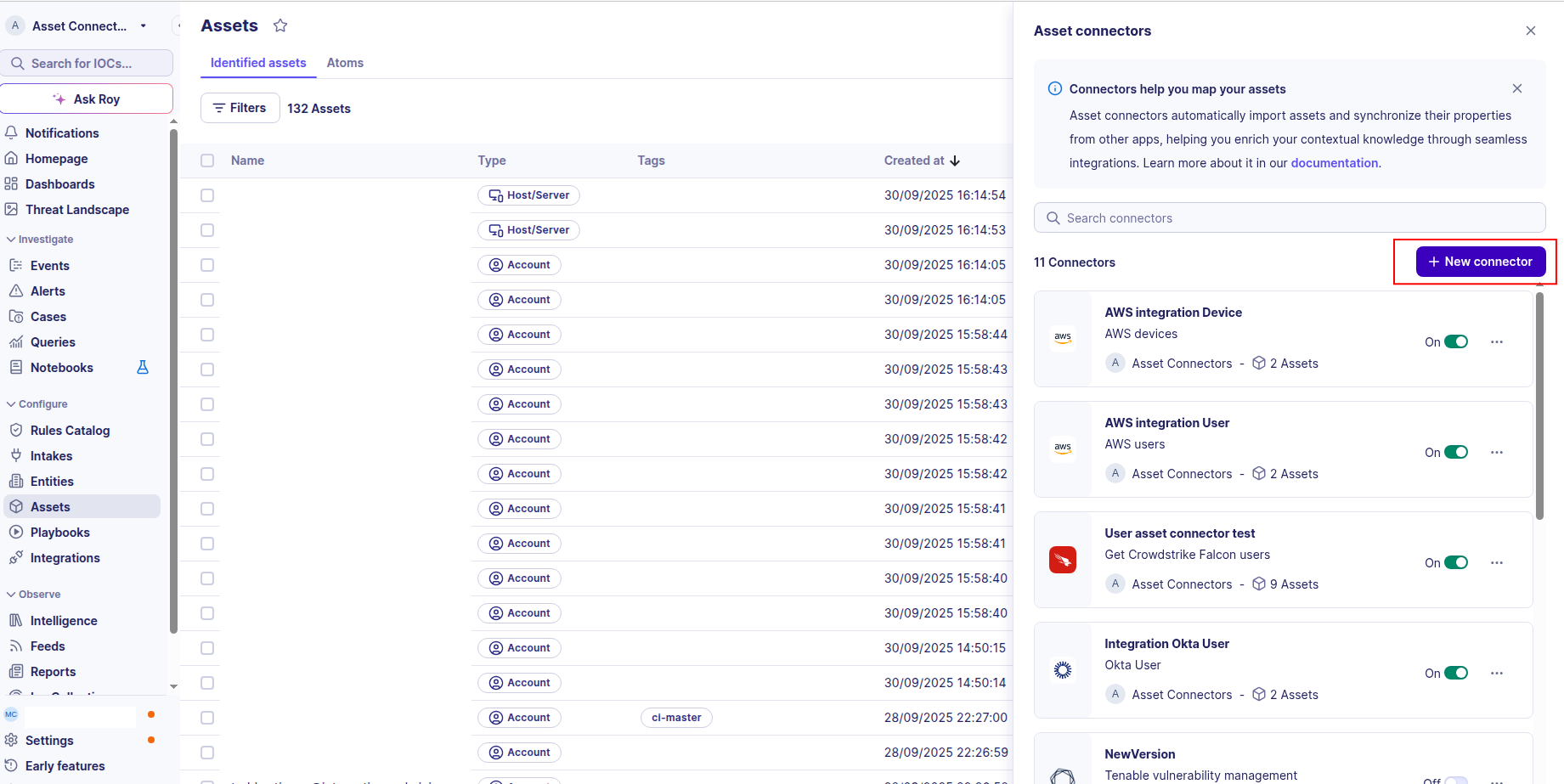
Click the + New connector button.
-
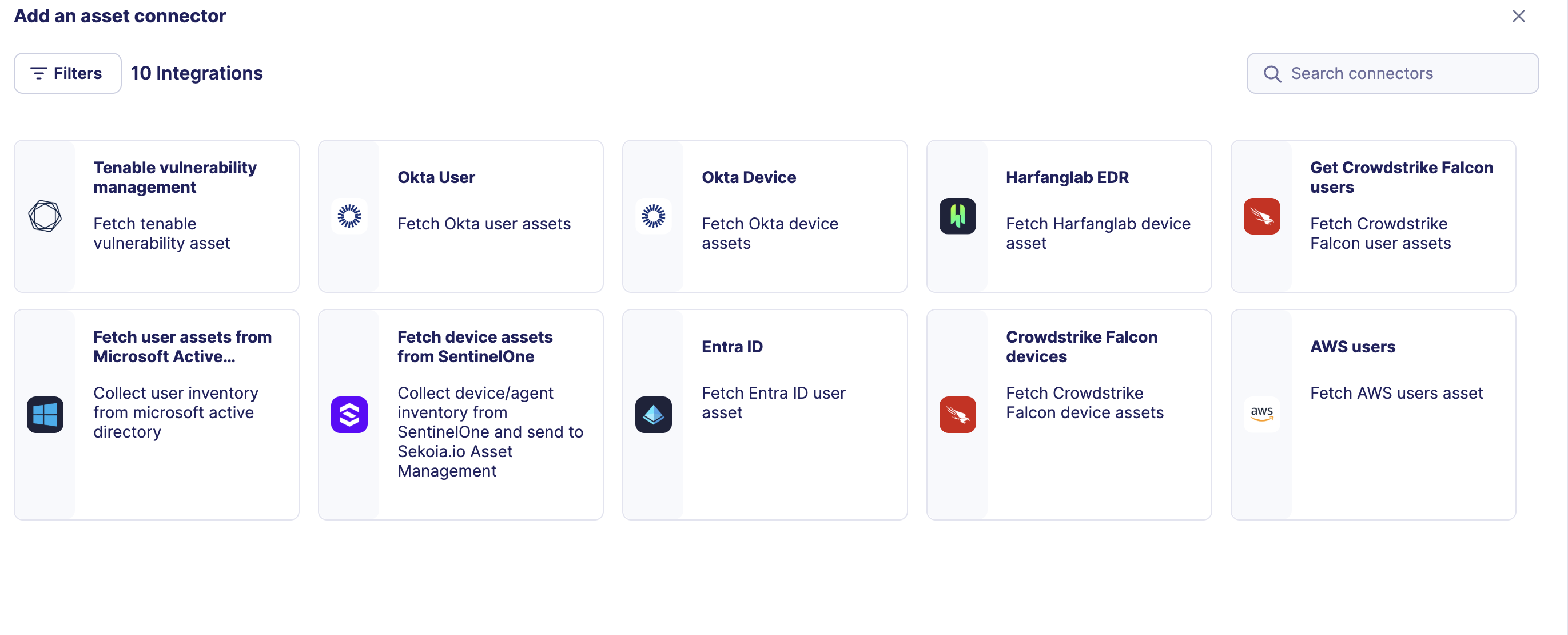
Choose Fetch user assets from Microsoft Active Directory, give it a name, and fill the required fields:
-
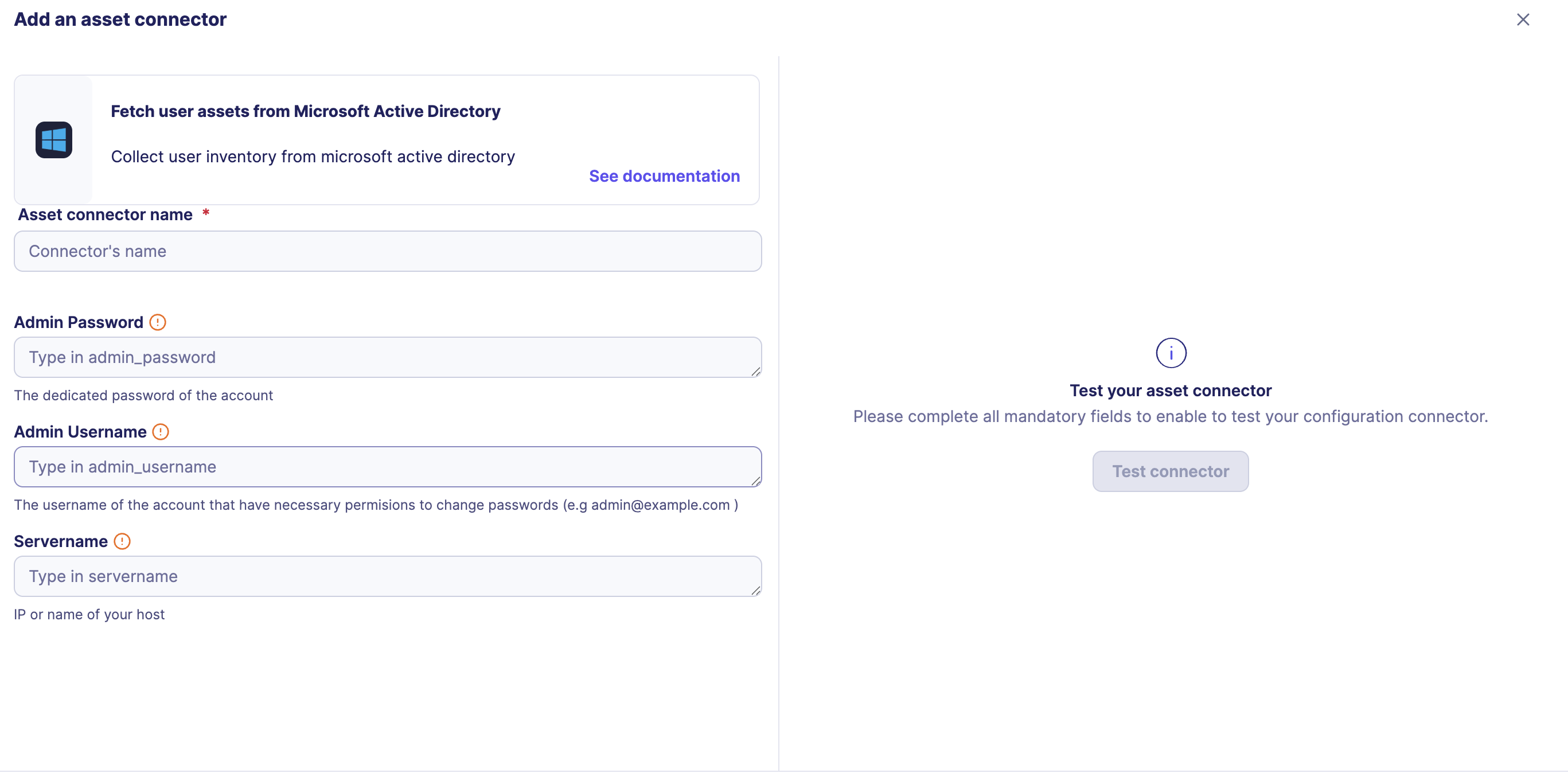
Enter the following information:
- Servername: The FQDN (Fully Qualified Domain Name) or static IP address of your Active Directory server
- Admin Username: The username of the account used for the bind.
- Admin Password: The password associated with the account.
-
Test the connection by clicking the Test connector button.
-
Click the Create asset connector button.
OCSF Mapping for Microsoft Active Directory Users
OCSF Class: User Inventory Info
Class UID: 5003
Information Collected
The Microsoft Active Directory Users fetches comprehensive information and transforms it into the OCSF (Open Cybersecurity Schema Framework) format for standardized security monitoring and asset management.
API Response Examples
Active Directory Active User
Active Directory user with console access and group membership
{
  "objectSid": "S-1-5-21-3623811015-3361044348-30300820-1013",
  "userPrincipalName": "mary.jones@example.com",
  "displayName": "Mary Jones",
  "givenName": "Mary",
  "sn": "Jones",
  "mail": "mary.jones@example.com",
  "objectGUID": "a1b2c3d4-e5f6-7890-abcd-ef1234567890",
  "userAccountControl": 512,
  "memberOf": [
    "CN=Finance Users,OU=Groups,DC=example,DC=com",
    "CN=All Users,OU=Groups,DC=example,DC=com"
  ],
  "department": "Finance",
  "title": "Financial Analyst",
  "employeeID": "EMP456",
  "physicalDeliveryOfficeName": "New York, NY",
  "mobile": "+1-555-234-5678",
  "telephoneNumber": "+1-555-234-5678",
  "distinguishedName": "CN=mary.jones,OU=Users,DC=example,DC=com",
  "whenCreated": "20200604100000.0Z",
  "whenChanged": "20250826093000.0Z",
  "lastLogonTimestamp": "20250826093000.0Z",
  "pwdLastSet": "20250101110000.0Z",
  "accountExpires": "0",
  "lastLogon": "20250826093000.0Z",
  "badPwdCount": 0,
  "logonCount": 156
}
Active Directory Disabled User
Active Directory user with account disabled and expired
{
  "objectSid": "S-1-5-21-3623811015-3361044348-30300820-1014",
  "userPrincipalName": "robert.smith@example.com",
  "displayName": "Robert Smith",
  "givenName": "Robert",
  "sn": "Smith",
  "mail": "robert.smith@example.com",
  "objectGUID": "b2c3d4e5-f6a7-8901-bcde-f12345678901",
  "userAccountControl": 514,
  "memberOf": [
    "CN=Engineering Users,OU=Groups,DC=example,DC=com"
  ],
  "department": "Engineering",
  "title": "Senior Software Engineer",
  "employeeID": "EMP789",
  "physicalDeliveryOfficeName": "San Francisco, CA",
  "mobile": "+1-555-345-6789",
  "telephoneNumber": "+1-555-345-6789",
  "distinguishedName": "CN=robert.smith,OU=Users,DC=example,DC=com",
  "whenCreated": "20200604100000.0Z",
  "whenChanged": "20250818150000.0Z",
  "lastLogonTimestamp": "20250610140000.0Z",
  "pwdLastSet": "20210101120000.0Z",
  "accountExpires": "20240826150000.0Z",
  "lastLogon": "20250610140000.0Z",
  "badPwdCount": 3,
  "logonCount": 89
}
Data Mapping Table
The following table shows how source data is mapped to OCSF model fields:
| Source Field | OCSF Field Path | Description | Data Type | Logic |
|---|---|---|---|---|
objectSid |
user.uid |
Active Directory user unique identifier (SID) | string |
Direct mapping of user SID (Security Identifier) |
displayName |
user.name |
User display name | string |
Direct mapping of display name |
displayName |
user.full_name |
User full name (from display name) | string |
Direct mapping of display name as full name |
distinguishedName |
user.account.uid |
Active Directory user DN (Distinguished Name) | string |
Direct mapping of distinguished name |
userPrincipalName |
user.account.name |
User principal name (UPN) | string |
Direct mapping of user principal name |
static: LDAP |
user.account.type |
Account type identifier | string |
Always 'LDAP' |
static: 4000 |
user.account.type_id |
OCSF account type ID | integer |
Always 4000 for LDAP account type |
userAccountControl |
user.is_enabled |
Whether user account is enabled | boolean |
Compute account enabled status; enabled = not (userAccountControl & 2) |
memberOf | length > 0 |
user.has_groups |
Whether user belongs to any groups | boolean |
true if user is member of any group, false otherwise |
memberOf |
user.groups |
Group memberships | array[object] |
Extract group DNs; create Group objects with DN as uid and parsed CN as name |
mail |
user.email_addr |
User email address | string |
Direct mapping of email address |
department |
user.department |
User department | string |
Direct mapping of department attribute |
title |
user.job_title |
User job title | string |
Direct mapping of job title |
employeeID |
user.employee_id |
Employee ID | string |
Direct mapping of employee ID |
physicalDeliveryOfficeName |
user.office_location |
Office location | string |
Direct mapping of office location |
mobile |
user.phone |
Mobile phone number | string |
Direct mapping of mobile phone number |
telephoneNumber |
user.work_phone |
Work phone number | string |
Direct mapping of work telephone number |
objectGUID |
user.uid_alt |
Active Directory user GUID (alternative UID) | string |
Direct mapping of GUID; remove curly braces |
distinguishedName |
user.domain |
User domain extracted from DN | string |
Extract domain from DN; parse DC= components into domain format |
whenCreated |
user.created_time |
User creation timestamp (Unix epoch) | integer |
Convert LDAP generalized time (YYYYMMDDhhmmss.0Z) to Unix timestamp |
whenChanged |
user.updated_time |
Last change timestamp (Unix epoch) | integer |
Convert LDAP generalized time to Unix timestamp |
lastLogonTimestamp |
user.last_login_time |
Last logon timestamp (Unix epoch) | integer |
Convert LDAP generalized time to Unix timestamp |
pwdLastSet |
user.password_last_changed_time |
Password last changed timestamp (Unix epoch) | integer |
Convert Windows FILETIME to Unix timestamp; return null if 0 |
accountExpires |
user.account_expires_time |
Account expiration timestamp (Unix epoch) | integer |
Convert Windows FILETIME to Unix timestamp; return null if 0 or 9223372036854775807 (never expires) |
whenCreated |
time |
OCSF event timestamp (user discovery time) | integer |
Convert LDAP generalized time to Unix timestamp for OCSF event timestamp |
static: 2 |
activity_id |
OCSF activity ID for inventory collection | integer |
Always 2 for 'Collect' activity |
static: Collect |
activity_name |
OCSF activity name | string |
Always 'Collect' |
static: Discovery |
category_name |
OCSF category name | string |
Always 'Discovery' |
static: 5 |
category_uid |
OCSF category UID | integer |
Always 5 for Discovery category |
static: User Inventory Info |
class_name |
OCSF class name | string |
Always 'User Inventory Info' |
static: 5003 |
class_uid |
OCSF class UID | integer |
Always 5003 for User Inventory Info |
computed: 500300 + activity_id |
type_uid |
OCSF type UID | integer |
Base 500300 + activity_id (2 = 500302) |
computed: class_name + ': ' + activity_name |
type_name |
OCSF type name | string |
Concatenate 'User Inventory Info: Collect' |
static: Informational |
severity |
Event severity level | string |
Always 'Informational' for inventory events |
static: 1 |
severity_id |
OCSF severity ID | integer |
Always 1 for Informational severity |
static: Microsoft Active Directory |
metadata.product.name |
Source product name | string |
Always 'Microsoft Active Directory' |
static: 1.6.0 |
metadata.version |
OCSF schema version | string |
Fixed OCSF schema version |
userAccountControl |
enrichments[0].data.is_enabled |
Whether user account is enabled | boolean |
Compute account enabled status; enabled = not (userAccountControl & 2) |
lastLogon |
enrichments[0].data.last_logon |
Last logon timestamp (Unix epoch) | integer |
Convert lastLogon datetime to Unix timestamp; return null if year <= 1601 or invalid |
badPwdCount |
enrichments[0].data.bad_password_count |
Number of failed password attempts | integer |
Direct mapping of bad password attempt count |
logonCount |
enrichments[0].data.number_of_logons |
Total number of logons | integer |
Direct mapping of logon count |
static: login |
enrichments[0].name |
Enrichment object name | string |
Always 'login' for user enrichment type |
static: account_security |
enrichments[0].value |
Enrichment object value | string |
Always 'account_security' for AD user login enrichment |
OCSF Model Structure
User Inventory Info: Collect
Transformed AD user to OCSF User Inventory Info event
{
  "activity_id": 2,
  "activity_name": "Collect",
  "category_name": "Discovery",
  "category_uid": 5,
  "class_name": "User Inventory Info",
  "class_uid": 5003,
  "type_name": "User Inventory Info: Collect",
  "type_uid": 500302,
  "severity": "Informational",
  "severity_id": 1,
  "time": 1591234567,
  "metadata": {
    "product": {
      "name": "Microsoft Active Directory"
    },
    "version": "1.6.0"
  },
  "user": {
    "uid": "S-1-5-21-3623811015-3361044348-30300820-1013",
    "name": "Mary Jones",
    "full_name": "Mary Jones",
    "email_addr": "mary.jones@example.com",
    "is_enabled": true,
    "domain": "example.com",
    "department": "Finance",
    "job_title": "Financial Analyst",
    "employee_id": "EMP456",
    "office_location": "New York, NY",
    "phone": "+1-555-234-5678",
    "work_phone": "+1-555-234-5678",
    "created_time": 1591234567,
    "updated_time": 1691234000,
    "last_login_time": 1691230000,
    "password_last_changed_time": 1681234567,
    "has_groups": true,
    "account": {
      "uid": "CN=mary.jones,OU=Users,DC=example,DC=com",
      "name": "mary.jones@example.com",
      "type": "LDAP",
      "type_id": 4000
    },
    "groups": [
      {
        "uid": "CN=Finance Users,OU=Groups,DC=example,DC=com",
        "name": "Finance Users"
      }
    ],
    "uid_alt": "a1b2c3d4-e5f6-7890-abcd-ef1234567890"
  },
  "enrichments": [
    {
      "name": "login",
      "value": "account_security",
      "data": {
        "is_enabled": true,
        "last_logon": 1691230000,
        "bad_password_count": 0,
        "number_of_logons": 156
      }
    }
  ]
}