Configure widgets and layout
The practical guide to building your Dashboards: adding widgets, organizing the layout, and using dynamic filters.
Working with widgets
Add widgets
- Open your Dashboard.
- In the Top right corner, click on Edit dashboard.
- In the top right corner, click the Add new widget button.
- Select Widgets from the available Queries (custom queries previously created in the Query Builder) or Presets (built-in).
Edit widgets
In the top right corner of a widget, click the three dots (...) and select Edit widget.
- Query visualization: You are redirected to the Query settings page to edit parameters.
- Preset: An editing panel appears to adjust options like time range or visualization type.
Remove widgets
Click the three dots (...) on a Widget and select Delete from dashboard.
Reorganizing the layout
- Open your Dashboard.
-
In the Top right corner, click on Edit dashboard. You can:
-
Move: Drag and drop Widgets to your preferred locations.
- Resize: Change the size of each Widget.
- Click Save to apply changes.
Using the Query Builder
You can insert an existing query created in the Query Builder into your dashboards to streamline visualization. It allows:
- Synchronization: Changes made to a Query on the Query Builder page are automatically propagated to all Dashboards using it.
- Tracking: On the Query Builder’s edit page, you can view a list of all Dashboards utilizing that specific Query.
- Visualization: The Widget utilizes the visualization settings saved within the Query Builder (refer to Query builder documentation to know more).
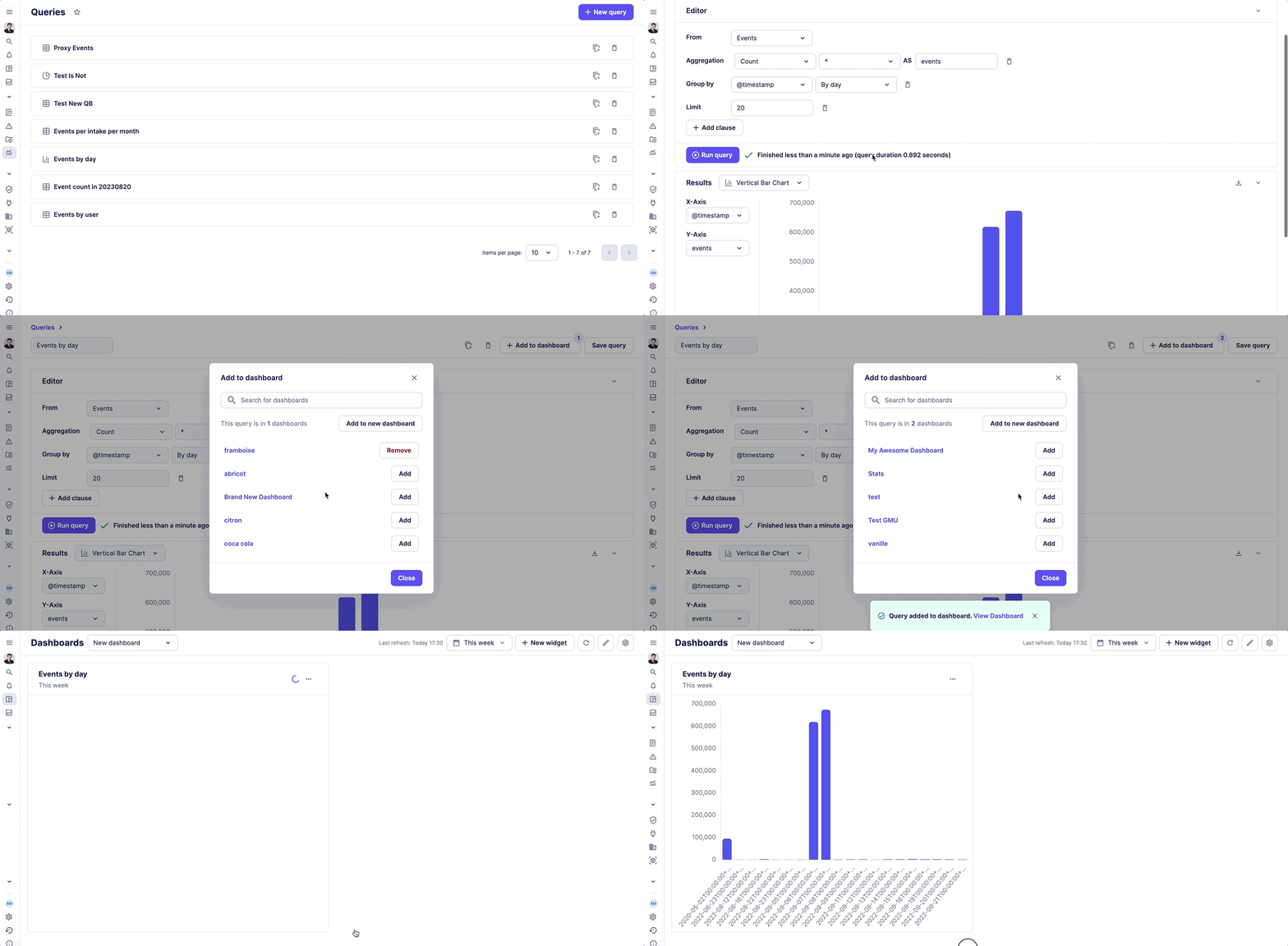
Insert a query from the Query Builder
You can add a query to a Dashboard directly after its creation in the Builder.
- To access the Query Builder, on the left side panel, click on Queries > New query.
- Configure your Query.
- Click Save. The query is immediately usable, and the + Add to a dashboard button appears.
- Click + Add to a dashboard.
-
To add the Query as a widget:
- In an existing dashboard, click on the Add button next to the relevant dashboard name.
- In a new dashboard, click on Add to new dashboard button and enter required fields.
Your dashboard name moves to the top of the list so that it is more visible. A Remove button replaces the Add button.
Note
Any changes made in a query will be applied to all dashboards where it is used. You can check and manage the dashboards that use it by returning to the + Add to a dashboard menu at any time.
Manage a query widget
In addition to the widget options available from the dashboard (see Working with widgets section), you can manage it from the Query builder:
From the + Add to a dashboard menu:
- Check where a query is used: the total number of usage is shown on the + Add to a dashboard, and all dashboards using it will be the first one in the list with a Remove button next to their name.
- Add or Remove a query from a dashboard: in the list, click on the button next to its name.
Next steps
- See the list of available presets in the Built-in Widgets reference article.
- Learn how to create meaningful custom widgets in the Query Builder documentation
- Discover how to use SOL language in your dashboard to Filter your dashboard's data.