Prerequisites to retrieve logs from AWS to Sekoia.io
When utilizing an AWS integration with Sekoia.io, the initial step involves centralizing your logs using AWS S3. This allows Sekoia.io to retrieve events seamlessly. The following page will guide you through the process of setting up these prerequisites.
Deploying the Data Collection Architecture
This section will guide you through creating all the AWS resources needed to collect AWS logs. If you already have existing resources that you want to use, you may do so, but any potential issues or incompatibilities with this tutorial will be your responsibility.
Prerequisites
In order to set up the AWS architecture, you need an administrator access to the Amazon console with the permissions to create and manage S3 buckets, SQS queues, S3 notifications, and IAM identities.
Sekoia.io supports two authentication methods to access your AWS resources. Choose the one that best fits your security requirements:
| Method | Summary | When to use |
|---|---|---|
| IAM Role with OIDC (Recommended) | Sekoia.io assumes an IAM Role using short-lived credentials issued via OpenID Connect (OIDC). No long-lived access keys are stored. | Preferred for new setups and security-conscious environments |
| Static Access Keys | A dedicated IAM user authenticates with a static access key and secret. | Existing setups or environments where OIDC federation is not available |
This method uses OpenID Connect (OIDC) federation so that Sekoia.io can assume an AWS IAM Role and obtain short-lived credentials automatically. No long-lived access keys are stored in Sekoia.io.
Step 1 — Register Sekoia.io as an OIDC Identity Provider in AWS IAM
- Open the IAM console and navigate to Identity providers.
- Click Add provider and select OpenID Connect.
- Fill in the form:
- Provider URL:
https://app.sekoia.io/api/v1/symphony/oidc - Audience:
sts.amazonaws.com
- Provider URL:
- Click Add provider to confirm.
Once created, note the Provider ARN (e.g. arn:aws:iam::XXXXXXXXXXXX:oidc-provider/app.sekoia.io/api/v1/symphony/oidc). You will need it in the steps below.
Info
If you plan to use the Automatic CloudFormation deployment, Steps 2–4 (IAM Role creation) are handled by the stack. You can jump directly to the Deploy the S3 and SQS Infrastructure section after completing Step 1.
Step 2 — Create an IAM Role for Sekoia.io
- In the IAM console, navigate to Roles and click Create role.
- Select Web identity as the trusted entity type.
- Choose the
app.sekoia.io/api/v1/symphony/oidcidentity provider you just registered and set the audience tosts.amazonaws.com. -
Proceed to the Trust policy and replace its content with the following, substituting your AWS account ID, community UUID, and module configuration UUID:
{
    "Version": "2012-10-17",
    "Statement": [
        {
            "Effect": "Allow",
            "Principal": {
                "Federated": "arn:aws:iam::XXXXXXXXXXXX:oidc-provider/app.sekoia.io/api/v1/symphony/oidc"
            },
            "Action": "sts:AssumeRoleWithWebIdentity",
            "Condition": {
                "StringEquals": {
                    "app.sekoia.io/api/v1/symphony/oidc:aud": "sts.amazonaws.com"
                },
                "StringLike": {
                    "app.sekoia.io/api/v1/symphony/oidc:sub": "community:<COMMUNITY_UUID>:modconf:<MODULE_CONFIGURATION_UUID>"
                }
            }
        }
    ]
}
Step 3 — Attach a permission policy to the role
Attach an inline or managed policy granting the role access to the SQS queue and S3 bucket:
{
    "Version": "2012-10-17",
    "Statement": [
        {
            "Effect": "Allow",
            "Action": [
                "s3:PutObject",
                "s3:GetObject",
                "s3:ListBucket"
            ],
            "Resource": "arn:aws:s3:::NAME_HERE"
        },
        {
            "Effect": "Allow",
            "Action": [
                "sqs:GetQueueUrl",
                "sqs:ReceiveMessage",
                "sqs:DeleteMessage",
                "sqs:GetQueueAttributes"
            ],
            "Resource": "arn:aws:sqs:REGION_HERE:XXXXXXXXXXXX:NAME_HERE"
        }
    ]
}
Step 4 — Copy the Role ARN
After creating the role, note its ARN (e.g. arn:aws:iam::XXXXXXXXXXXX:role/ROLE_NAME). You will need it when configuring the connector in Sekoia.io.
Step 5 — Configure the Sekoia.io AWS module
In the Sekoia.io connector configuration, set the following fields:
- AWS Region (
aws_region_name): the AWS region where your resources are deployed (e.g.eu-west-1) - AWS Role ARN (
aws_role_arn): the ARN of the role you created above
Leave the Access Key and Secret Access Key fields empty — they are not used with this method.
Deploy the S3 and SQS Infrastructure
Once the IAM Role is configured, deploy the S3 bucket and SQS queue that will receive log notifications.
To get started, click on the button below and fill the form on AWS to set up the required environment for Sekoia 
You need to fill the following inputs:
Required:
- Stack name - Name of the stack in CloudFormation
- BucketName - Name of the S3 Bucket
- SQSName - Name of the SQS queue
- OIDCProviderArn - ARN of the Sekoia.io OIDC Identity Provider you created in Step 1 (e.g.
arn:aws:iam::XXXXXXXXXXXX:oidc-provider/app.sekoia.io/api/v1/symphony/oidc) - CommunityUUID - Your Sekoia.io Community UUID (find it in the Sekoia.io platform under your community settings)
- ModuleConfigurationUUID - Your Sekoia.io Module Configuration UUID (find it in the connector's configuration page). Use
*to allow all connectors within the community.
Optional:
- RoleName - Name of the IAM Role to create (default:
SekoiaIOConnectorRole)
Read the different pages and click on Next, then click on Submit.
You can follow the creation in the Events tab (it can take few minutes).
Once finished, it should be displayed on the left CREATE_COMPLETE. Click on the Outputs tab in order to retrieve the information needed for the Sekoia.io connector.
Create a S3 Bucket
Please refer to this guide to create a S3 Bucket.
Create a SQS queue
The collect will rely on S3 Event Notifications (SQS) to get new S3 objects.
- Create a queue in the SQS service by following this guide
- In the Access Policy step, choose the advanced configuration and adapt this configuration sample with your own SQS Amazon Resource Name (ARN) (the main change is the Service directive allowing S3 bucket access):
{
  "Version": "2008-10-17",
  "Id": "__default_policy_ID",
  "Statement": [
    {
      "Sid": "__owner_statement",
      "Effect": "Allow",
      "Principal": {
        "Service": "s3.amazonaws.com"
      },
      "Action": "SQS:SendMessage",
      "Resource": "arn:aws:sqs:XXX:XXX"
    }
  ]
}
Important
Keep in mind that you have to create the SQS queue in the same region as the S3 bucket you want to watch.
Info
No need to add a prefix in the notification configuration and you can select all S3 events
Info
If you want to use an SNS topic between S3 and SQS, you must enable the raw message delivery option in your SNS subscription configuration. Otherwise, the SQS queue will not be able to parse messages from the SNS topic and you will not receive any logs in Sekoia.io.
Create a S3 Event Notification
Use the following guide to create S3 Event Notification. Once created:
- Select the notification for object creation in the Event type section
- As the destination, choose the SQS service
- Select the queue you created in the previous section
This method authenticates using a dedicated IAM user with a static access key and secret access key stored in Sekoia.io.
Step 1 — Create a dedicated IAM user
Create a dedicated IAM user in the IAM console and generate programmatic access credentials (access key ID and secret access key) for that user.
Step 2 — Attach a resource-based policy to your SQS queue and S3 bucket
Ensure that the IAM user has the following permissions on your SQS queue and S3 bucket. You can apply these as a resource-based policy on each resource, substituting your account ID, username, region, and resource names:
{
    "Version": "2012-10-17",
    "Statement": [
        {
            "Effect": "Allow",
            "Action": [
                "sqs:ReceiveMessage", "sqs:DeleteMessage", "sqs:GetQueueUrl"
            ],
            "Principal": {
                "AWS": "arn:aws:iam::XXXXXXXXXXXX:user/USERNAME_HERE"
            },
            "Resource": "arn:aws:sqs:REGION_HERE:XXXXXXXXXXXX:NAME_HERE"
        },
        {
            "Effect": "Allow",
            "Action": [
                "s3:GetObject"
            ],
            "Principal": {
                "AWS": "arn:aws:iam::XXXXXXXXXXXX:user/USERNAME_HERE"
            },
            "Resource": "arn:aws:s3:::NAME_HERE/*"
        }
    ]
}
Step 3 — Configure the Sekoia.io AWS module
In the Sekoia.io connector configuration, set the following fields:
- AWS Region (
aws_region_name): the AWS region where your resources are deployed (e.g.eu-west-1) - Access Key (
aws_access_key): the access key ID of your IAM user - Secret Access Key (
aws_secret_access_key): the secret access key of your IAM user
Leave the AWS Role ARN field empty — it is not used with this method.
Deploy the S3 and SQS Infrastructure
Once the IAM user is configured, deploy the S3 bucket and SQS queue that will receive log notifications.
To get started, click on the button below and fill the form on AWS to set up the required environment for Sekoia
You need to fill 4 inputs:
- Stack name - Name of the stack in CloudFormation (Name of the template)
- BucketName - Name of the S3 Bucket
- IAMUserName - Name of the dedicated user to access the S3 and SQS queue
- SQSName - Name of the SQS queue
Read the different pages and click on Next, then click on Submit.
You can follow the creation in the Events tab (it can take few minutes).
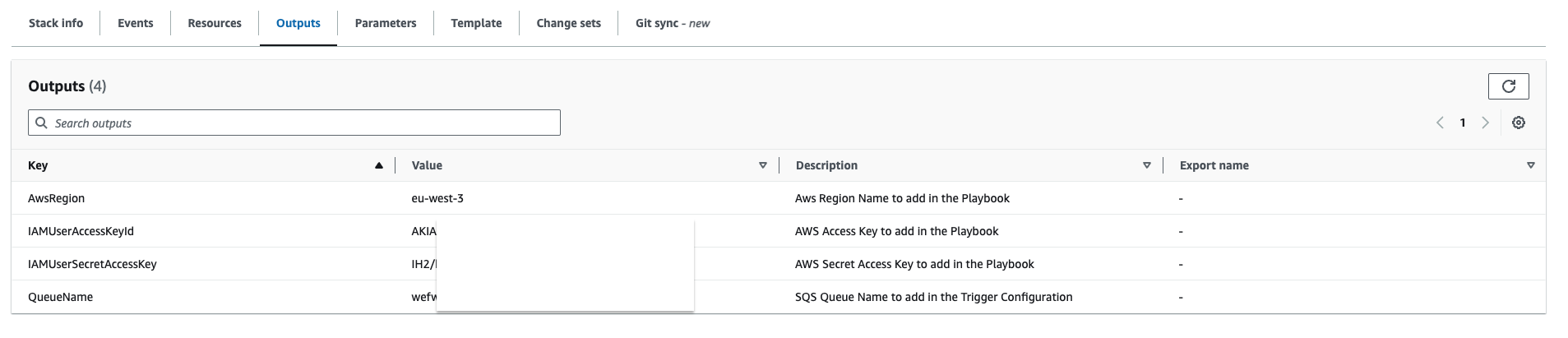
Once finished, it should be displayed on the left CREATE_COMPLETE. Click on the Outputs tab in order to retrieve the information needed for Sekoia playbook.
Create a S3 Bucket
Please refer to this guide to create a S3 Bucket.
Create a SQS queue
The collect will rely on S3 Event Notifications (SQS) to get new S3 objects.
- Create a queue in the SQS service by following this guide
- In the Access Policy step, choose the advanced configuration and adapt this configuration sample with your own SQS Amazon Resource Name (ARN) (the main change is the Service directive allowing S3 bucket access):
{
  "Version": "2008-10-17",
  "Id": "__default_policy_ID",
  "Statement": [
    {
      "Sid": "__owner_statement",
      "Effect": "Allow",
      "Principal": {
        "Service": "s3.amazonaws.com"
      },
      "Action": "SQS:SendMessage",
      "Resource": "arn:aws:sqs:XXX:XXX"
    }
  ]
}
Important
Keep in mind that you have to create the SQS queue in the same region as the S3 bucket you want to watch.
Info
No need to add a prefix in the notification configuration and you can select all S3 events
Info
If you want to use an SNS topic between S3 and SQS, you must enable the raw message delivery option in your SNS subscription configuration. Otherwise, the SQS queue will not be able to parse messages from the SNS topic and you will not receive any logs in Sekoia.io.
Create a S3 Event Notification
Use the following guide to create S3 Event Notification. Once created:
- Select the notification for object creation in the Event type section
- As the destination, choose the SQS service
- Select the queue you created in the previous section