AWS IAM
Overview
AWS Identity and Access Management (IAM) is a web service that helps you securely control access to AWS resources. With IAM, you can centrally manage permissions that control which AWS resources users can access. You use IAM to control who is authenticated (signed in) and authorized (has permissions) to use resources.
- Vendor: Amazon
- Product: AWS IAM
- Supported environment: Cloud
Configure
Sekoia.io supports two authentication methods to access your AWS resources. Choose the one that best fits your security requirements:
| Method | Summary | When to use |
|---|---|---|
| IAM Role with OIDC (Recommended) | Sekoia.io assumes an IAM Role using short-lived credentials issued via OpenID Connect (OIDC). No long-lived access keys are stored. | Preferred for new setups and security-conscious environments |
| Static Access Keys | A dedicated IAM user authenticates with a static access key and secret. | Existing setups or environments where OIDC federation is not available |
Step 1 — Register Sekoia.io as an OIDC Identity Provider in AWS IAM
- Open the IAM console and navigate to Identity providers.
- Click Add provider and select OpenID Connect.
- Fill in the form:
- Provider URL:
https://app.sekoia.io/api/v1/symphony/oidc - Audience:
sts.amazonaws.com
- Provider URL:
- Click Add provider to confirm.
Once created, note the Provider ARN (e.g. arn:aws:iam::XXXXXXXXXXXX:oidc-provider/app.sekoia.io/api/v1/symphony/oidc).
Step 2 — Create an IAM Role for Sekoia.io
- In the IAM console, navigate to Roles and click Create role.
- Select Web identity as the trusted entity type.
- Choose the
app.sekoia.io/api/v1/symphony/oidcidentity provider and set the audience tosts.amazonaws.com. -
Replace the trust policy with the following, substituting your AWS account ID and community/connector UUIDs:
{ "Version": "2012-10-17", "Statement": [ { "Effect": "Allow", "Principal": { "Federated": "arn:aws:iam::XXXXXXXXXXXX:oidc-provider/app.sekoia.io/api/v1/symphony/oidc" }, "Action": "sts:AssumeRoleWithWebIdentity", "Condition": { "StringEquals": { "app.sekoia.io/api/v1/symphony/oidc:aud": "sts.amazonaws.com" }, "StringLike": { "app.sekoia.io/api/v1/symphony/oidc:sub": "community:<COMMUNITY_UUID>:modconf:<MODULE_CONFIGURATION_UUID>" } } } ] } -
Attach the permissions from the Required IAM permissions section to the role.
- Note the Role ARN (e.g.
arn:aws:iam::XXXXXXXXXXXX:role/ROLE_NAME). You will need it when configuring the connector in Sekoia.io.
How to create an IAM user with proper permissions
To connect AWS IAM to Sekoia.io, you need to create an IAM user with the necessary permissions to access IAM users and groups. Follow these steps:
-
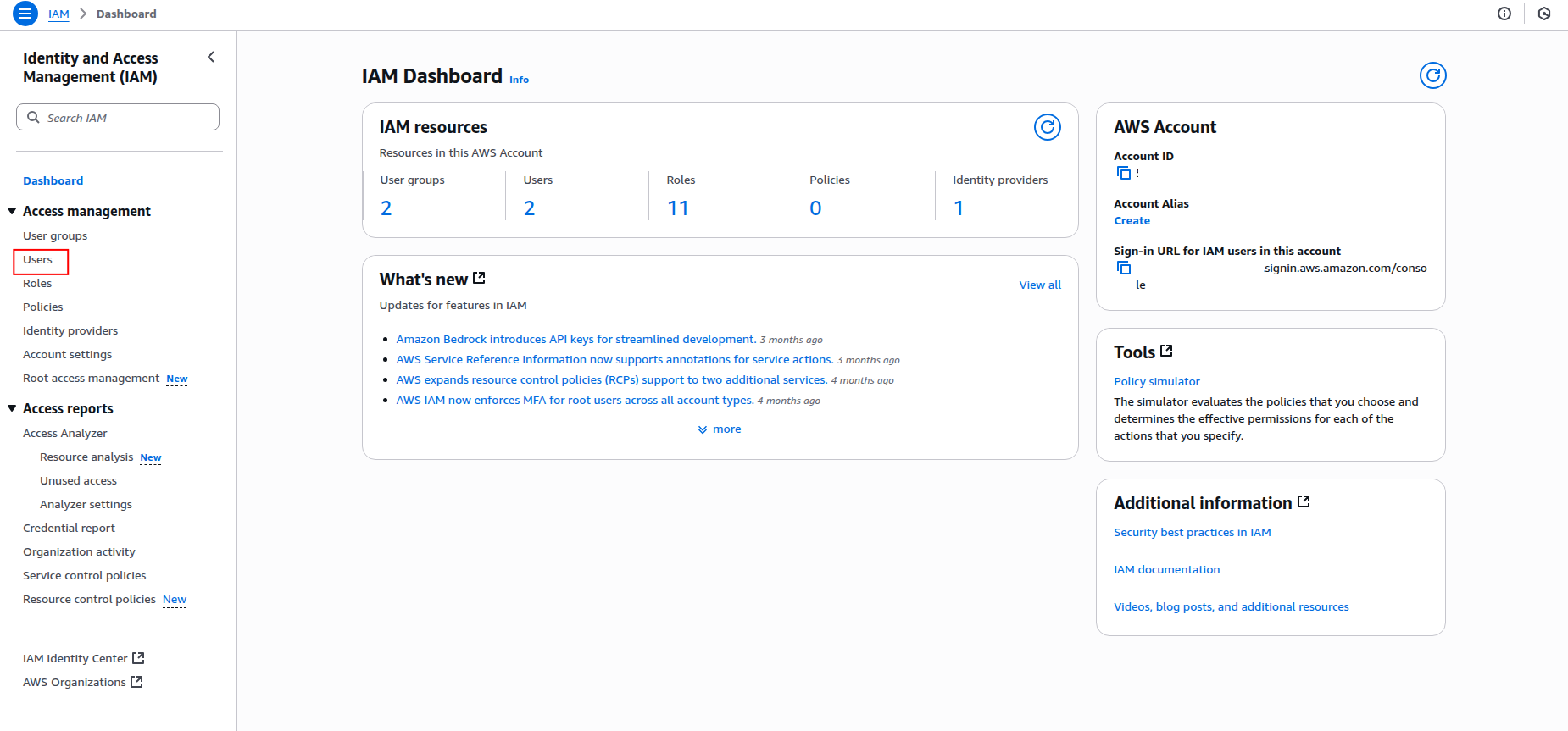
Sign in to the AWS Management Console and navigate to the IAM service.
-
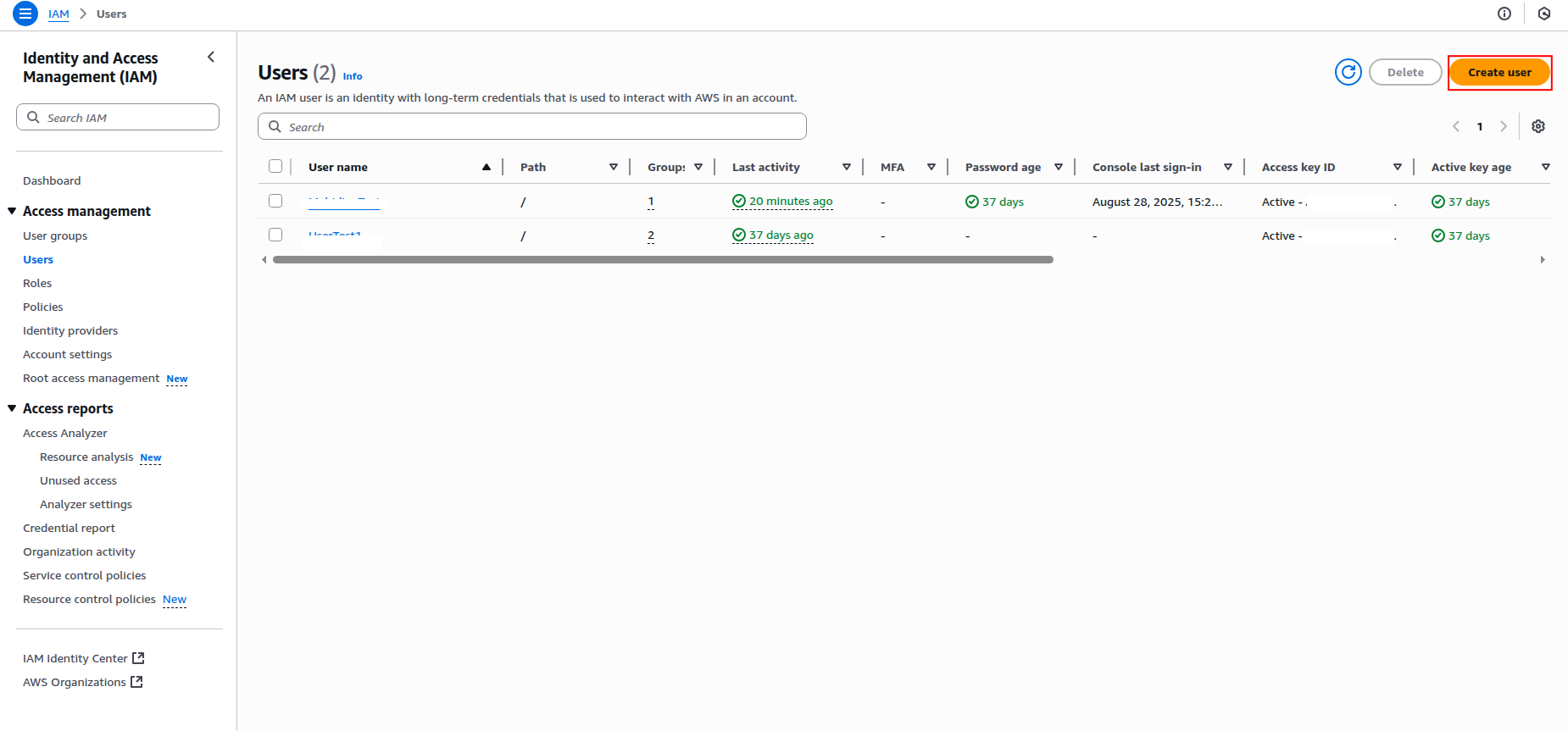
Click Users in the left navigation pane, then click Create user.
-
Enter a username for the IAM user (e.g.,
sekoia-iam-reader) and click Next.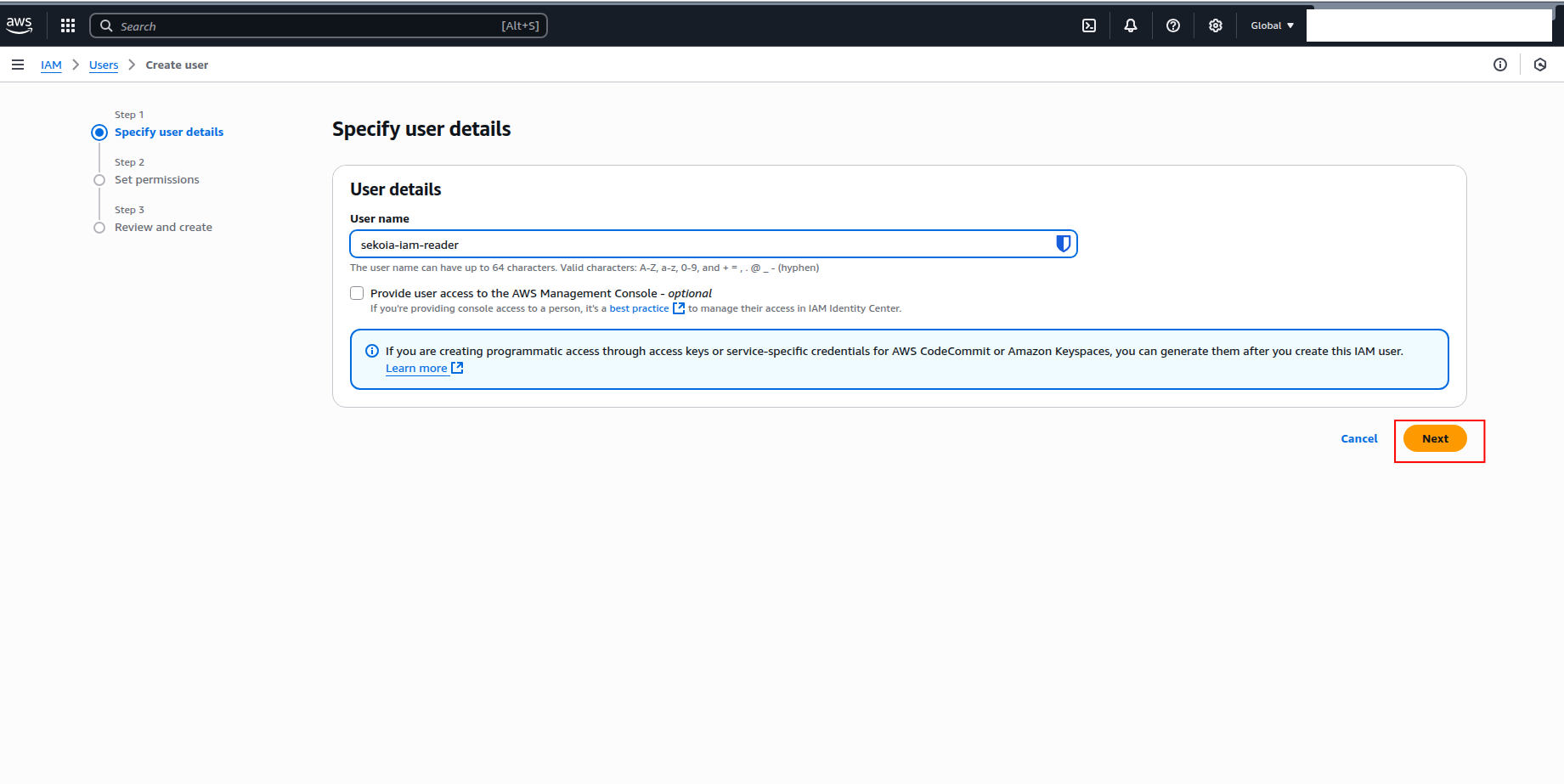
-
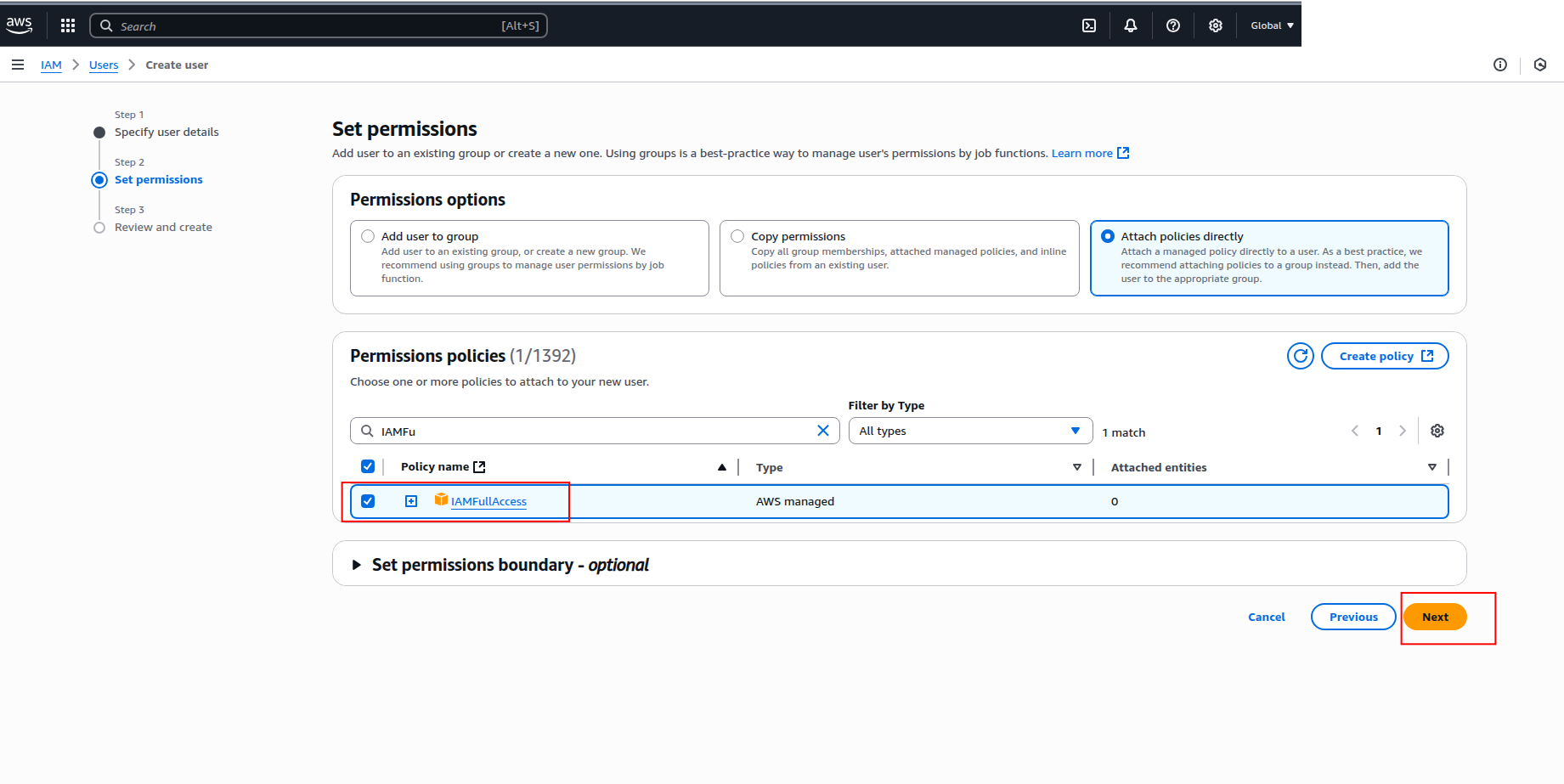
In the Set permissions step, select Attach policies directly and search for the following policies:
IAMReadOnlyAccess(recommended for ingestion; grants only read access to IAM resources)IAMFullAccess(only if you require full IAM management capabilities)
Warning
- Granting
IAMFullAccessprovides extensive permissions that may pose security risks. Only use it if absolutely necessary and ensure to follow the principle of least privilege. - Do not attach both policies to the same user, as this could lead to permission conflicts.
-
Click Next to review, then click Create user.
How to generate access keys
After creating the IAM user, you need to generate access keys for programmatic access:
-
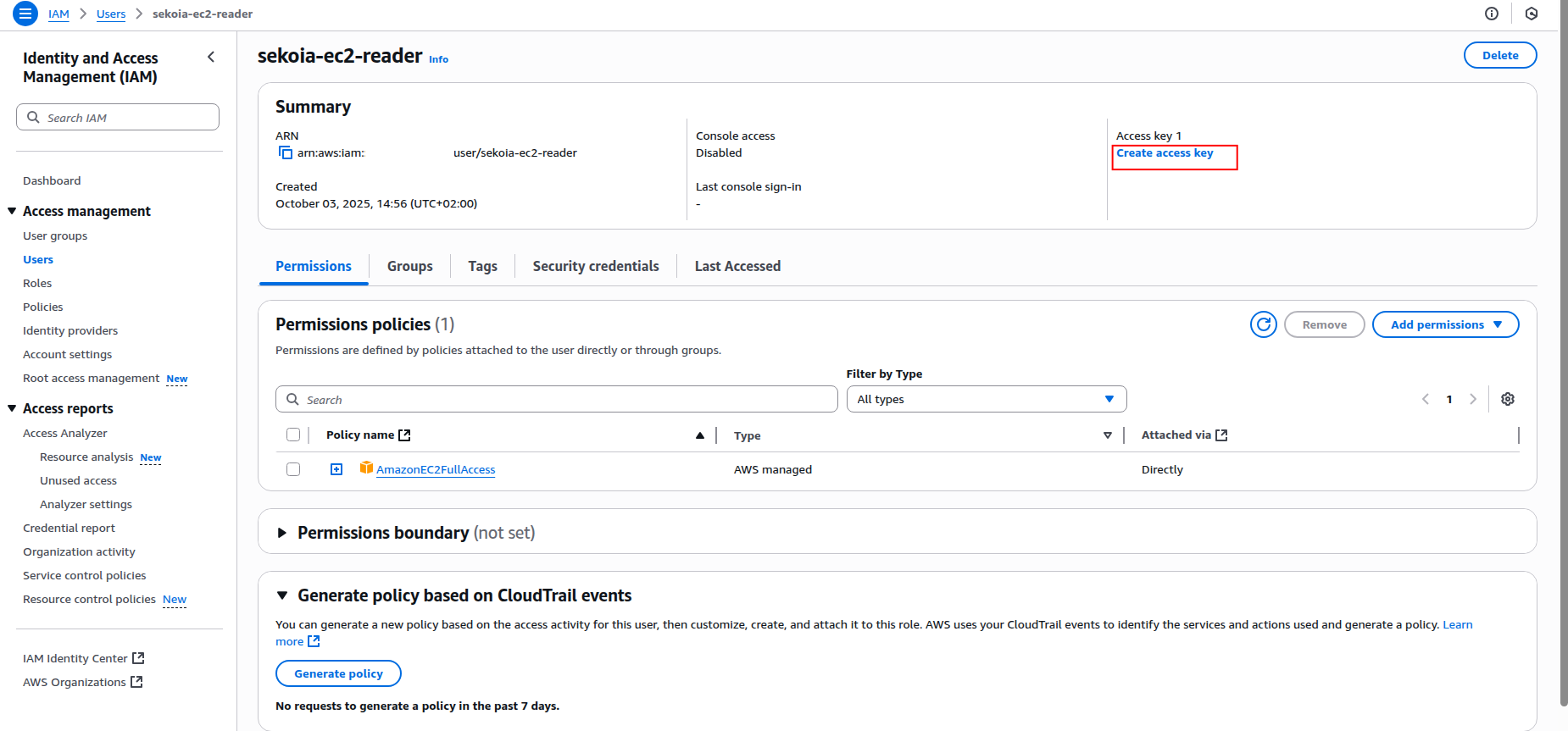
Click on the created user name to open the user details page.
-
Click the Create an access key button.
-
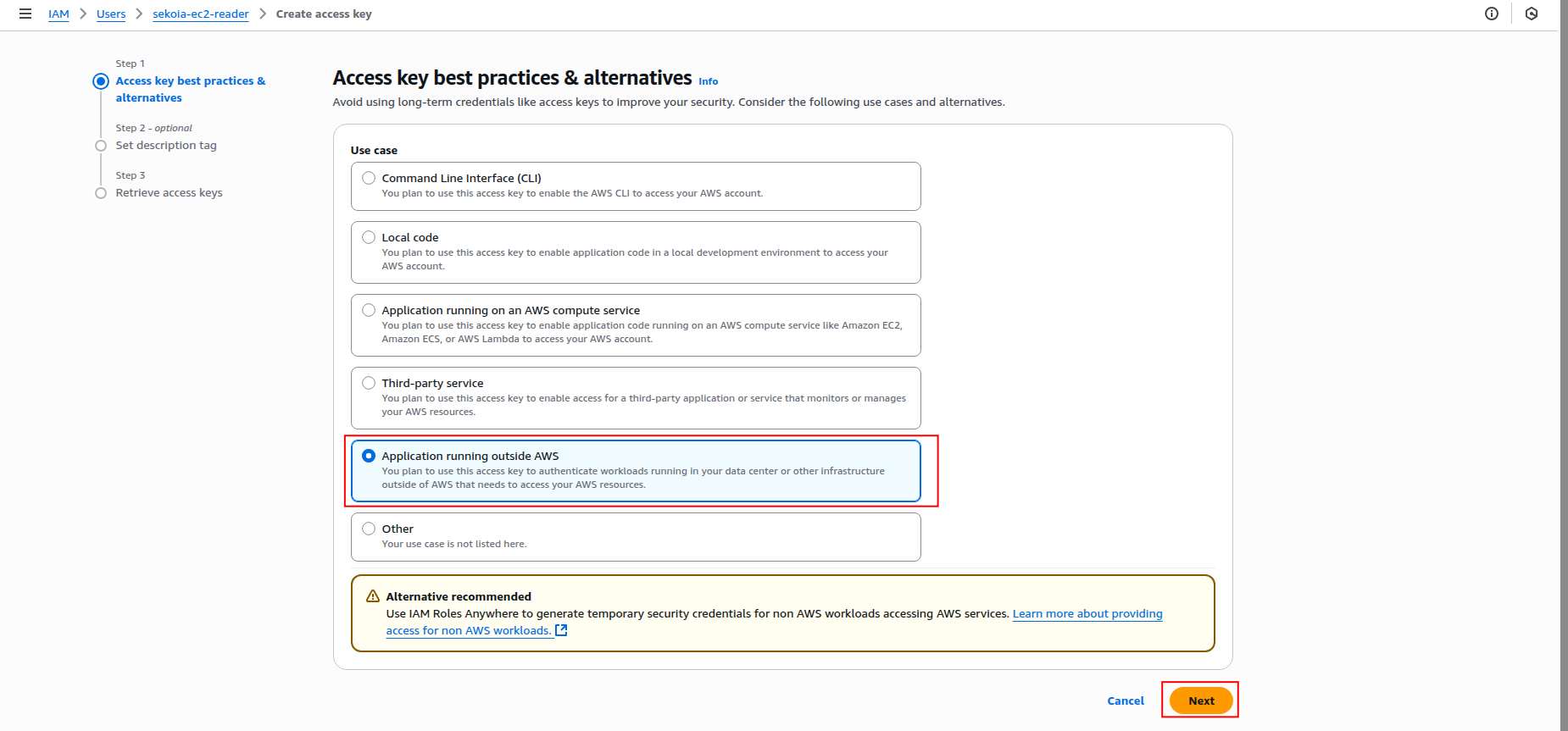
Select Application running outside AWS as the use case and click Next.
-
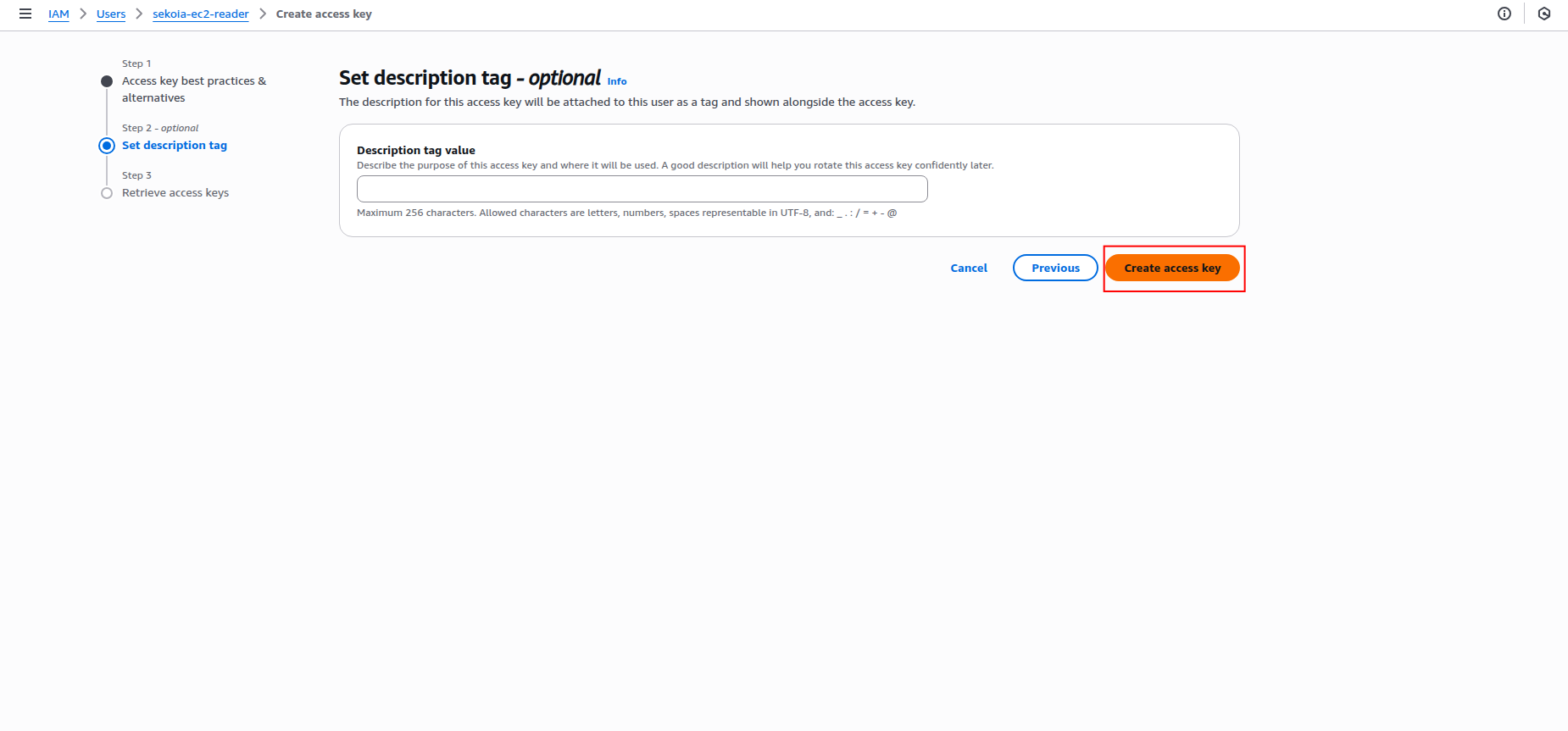
Add a description tag (optional) and click Create access key.
-
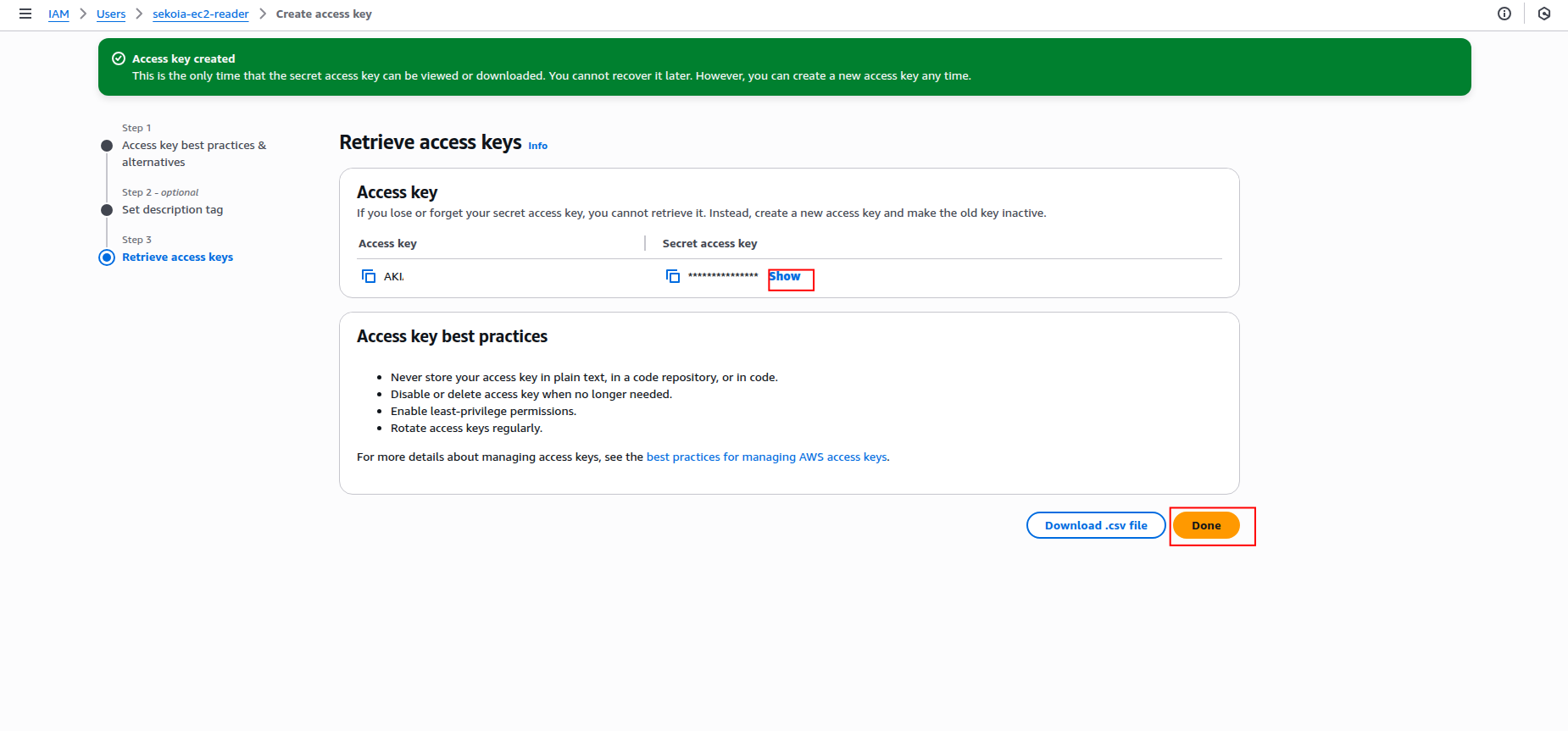
Copy the Access key ID and Secret access key to a safe location. You'll need these credentials to configure the connector in Sekoia.io.
Warning
- The secret access key is only shown when you create it. If you lose it, you must create a new access key.
- Store these credentials securely and never share them publicly.
- Consider rotating access keys regularly for security best practices.
Required IAM permissions
Both the IAM Role (OIDC) and IAM user (static keys) must have the following permissions to successfully fetch IAM users and groups:
{
    "Version": "2012-10-17",
    "Statement": [
        {
            "Effect": "Allow",
            "Action": [
                "iam:ListUsers",
                "iam:GetUser",
                "iam:ListGroups",
                "iam:GetGroup",
                "iam:ListGroupsForUser",
                "iam:ListUserPolicies",
                "iam:ListAttachedUserPolicies",
                "iam:GetUserPolicy",
                "iam:ListGroupPolicies",
                "iam:ListAttachedGroupPolicies",
                "iam:GetGroupPolicy",
                "iam:ListAccessKeys",
                "iam:ListSigningCertificates",
                "iam:ListSSHPublicKeys",
                "iam:ListServiceSpecificCredentials",
                "iam:ListMFADevices",
                "iam:GetLoginProfile",
                "iam:ListUserTags",
                "iam:ListGroupTags",
                "iam:GetAccountSummary"
            ],
            "Resource": "*"
        }
    ]
}
Supported AWS regions
The AWS IAM connector supports all AWS regions where IAM is available. IAM is a global service, but you can specify any AWS region for the API calls. Common regions include:
- US East (N. Virginia):
us-east-1 - US West (Oregon):
us-west-2 - Europe (Ireland):
eu-west-1 - Europe (London):
eu-west-2 - Asia Pacific (Tokyo):
ap-northeast-1 - Asia Pacific (Singapore):
ap-southeast-1
For a complete list of available regions, refer to the AWS Global Infrastructure documentation.
Create your asset
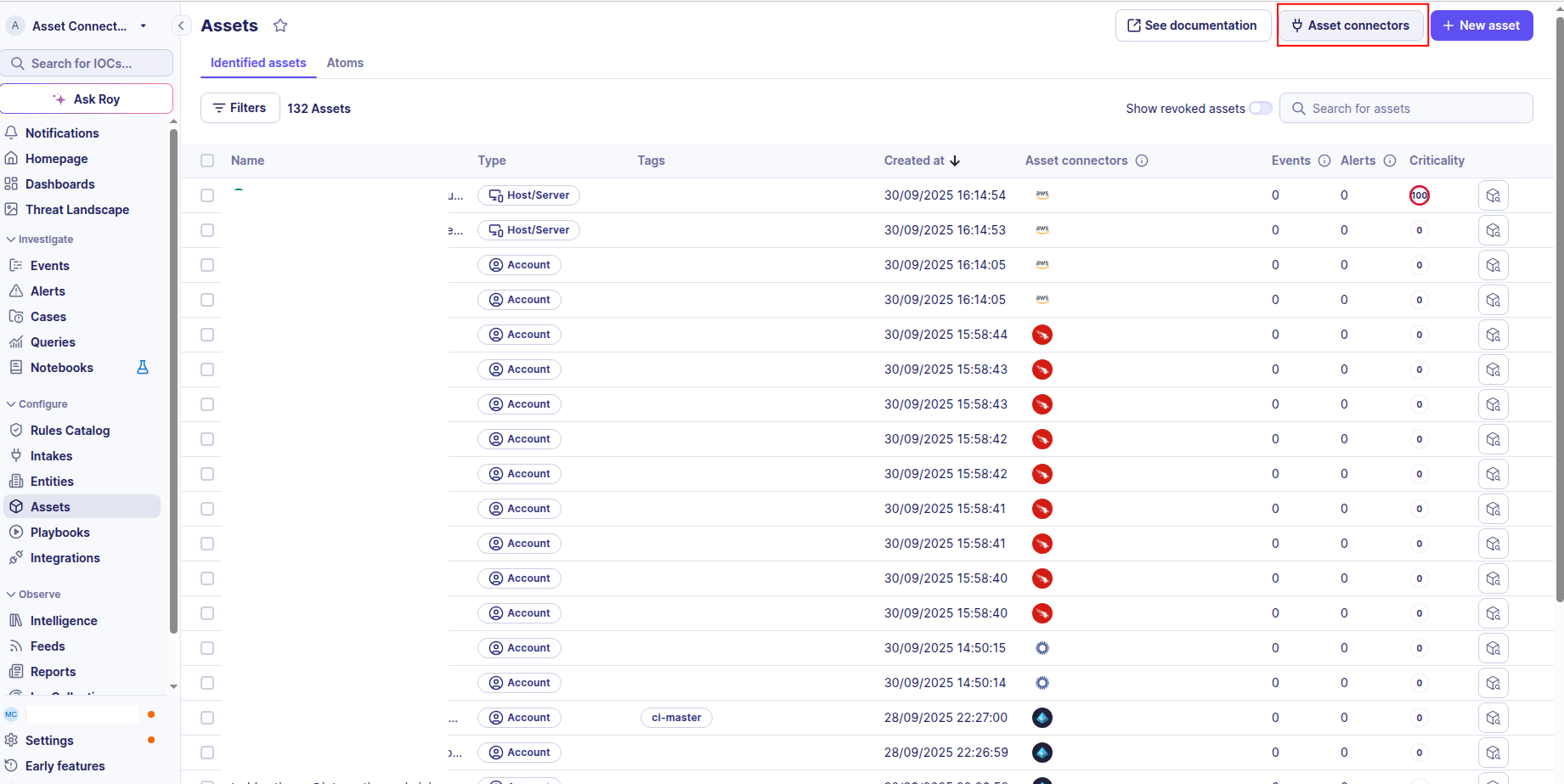
To start getting your AWS IAM users into Sekoia.io, you need to create an asset connector on the Assets page. To do so, follow these steps:
-
Click the Asset connectors button to create a new connector.
-
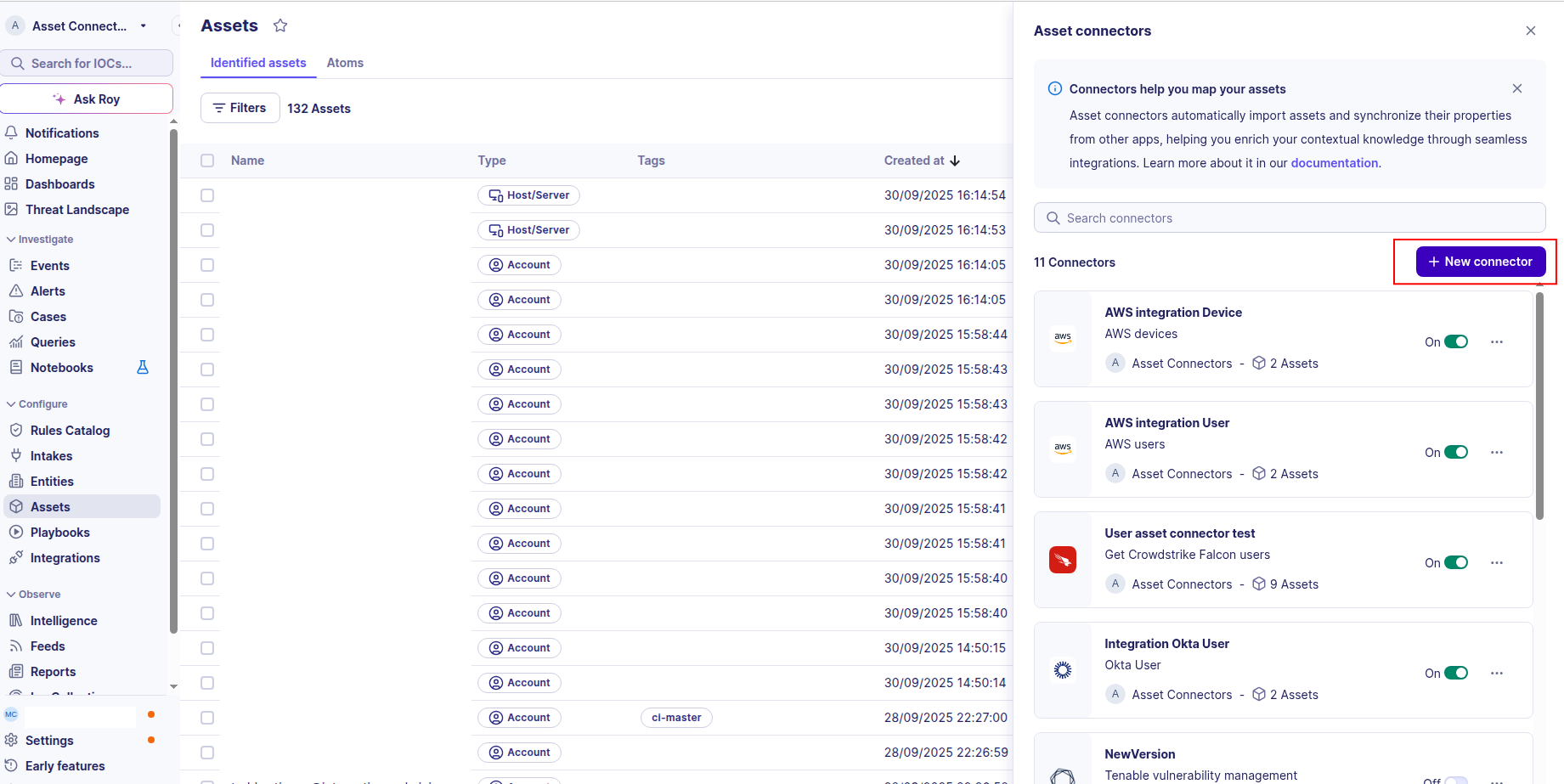
Click the + New connector button.
-
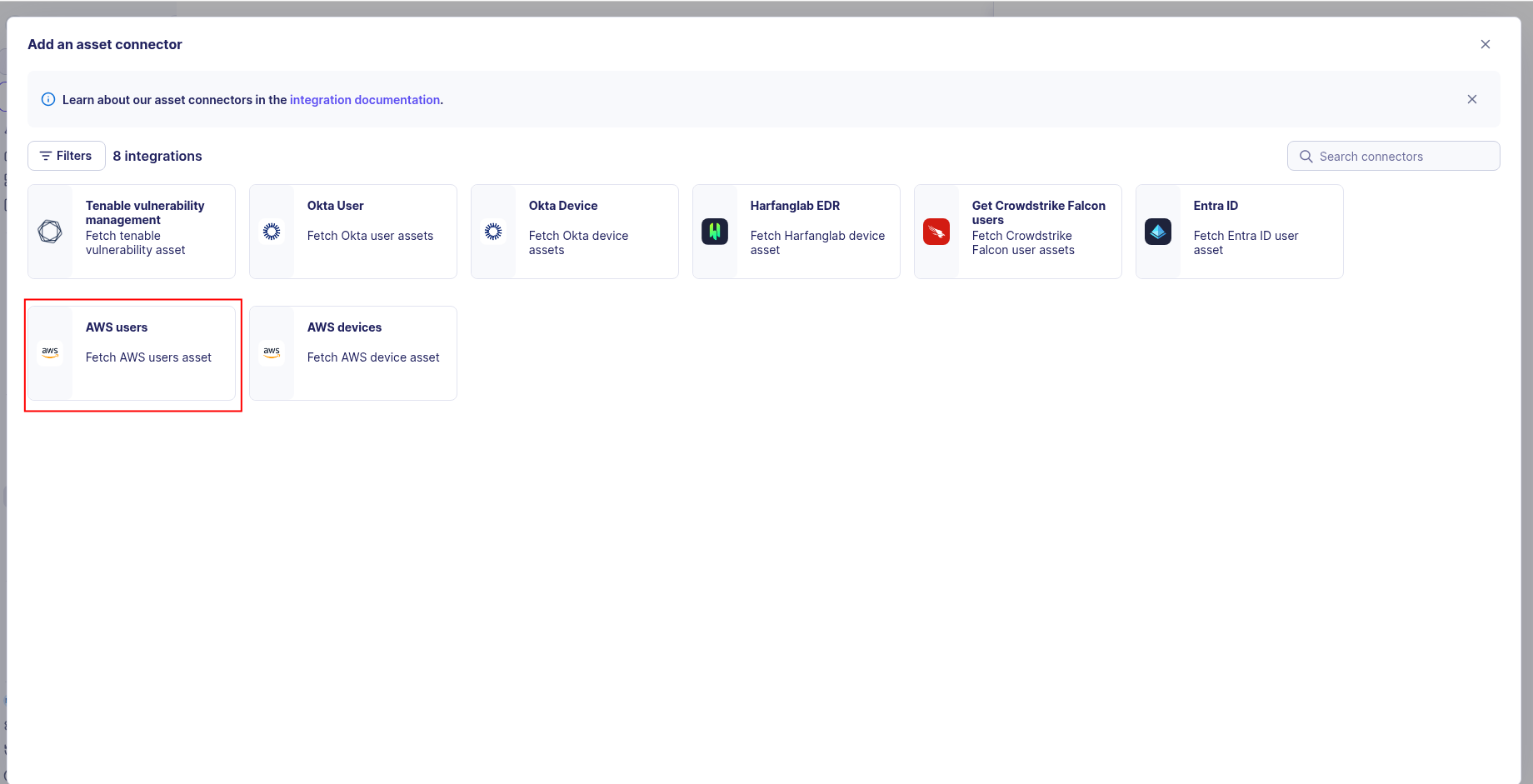
Choose AWS users, give it a name, and fill the required fields:
-
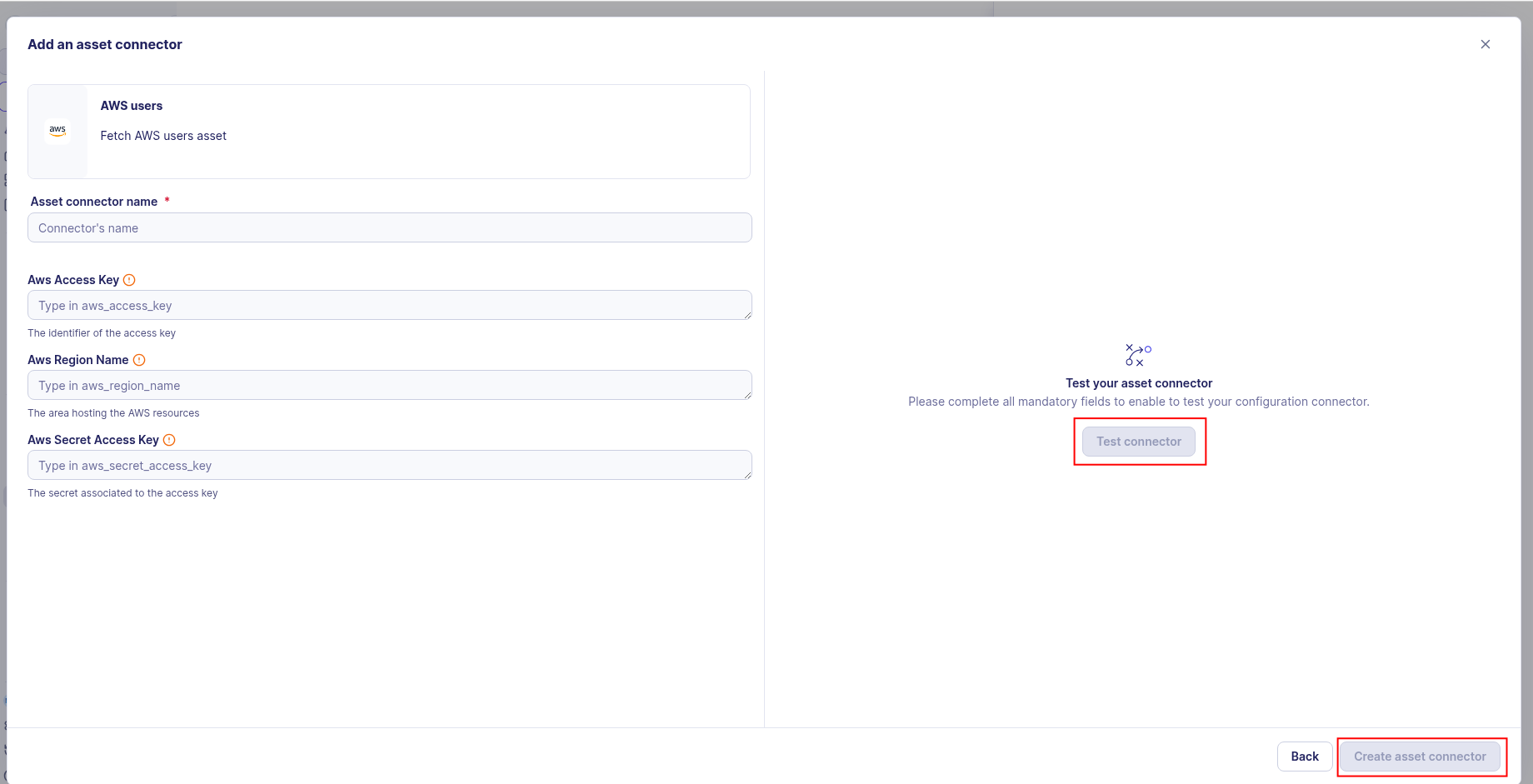
Enter the following information:
- Region: The AWS region for API calls (e.g.,
us-east-1) - For OIDC (Recommended): set the Role ARN to the ARN of the role you created
- For Static Access Keys: set the Access Key ID and Secret Access Key from your IAM user
- Region: The AWS region for API calls (e.g.,
-
Test the connection by clicking the Test connector button.
-
Click the Create asset connector button.
OCSF Mapping for AWS Users
OCSF Class: User Inventory Info
Class UID: 5003
OCSF Version: 1.6.0
Information Collected
The AWS Users fetches comprehensive information and transforms it into the OCSF (Open Cybersecurity Schema Framework) format for standardized security monitoring and asset management.
API Response Examples
AWS IAM Programmatic User
IAM user with programmatic access (API keys) but no console access
{
  "UserId": "AIDAI23HZ27SI6FQMGNHQ",
  "UserName": "lambda-execution-role",
  "Arn": "arn:aws:iam::123456789012:user/service-role/lambda-execution-role",
  "Path": "/service-role/",
  "CreateDate": "2020-06-04T10:00:00Z",
  "PasswordLastUsed": null,
  "AccessKeys": [
    {
      "AccessKeyId": "AKIA123456789EXAMPLE",
      "Status": "Active",
      "CreateDate": "2020-06-04T10:00:00Z"
    },
    {
      "AccessKeyId": "AKIA987654321EXAMPLE",
      "Status": "Active",
      "CreateDate": "2021-03-15T14:30:00Z"
    }
  ],
  "MFADevices": [],
  "ConsoleAccessEnabled": false,
  "Tags": [
    {
      "Key": "Purpose",
      "Value": "Lambda Execution"
    },
    {
      "Key": "Environment",
      "Value": "Production"
    }
  ]
}
AWS IAM Console User
IAM user with console access and MFA enabled
{
  "UserId": "AIDACKCEVSQ6C2EXAMPLE",
  "UserName": "aws-developer-team",
  "Arn": "arn:aws:iam::123456789012:user/engineering/aws-developer-team",
  "Path": "/engineering/",
  "CreateDate": "2020-06-04T10:00:00Z",
  "PasswordLastUsed": "2025-08-26T09:30:00Z",
  "AccessKeys": [
    {
      "AccessKeyId": "AKIAIOSFODNN7EXAMPLE",
      "Status": "Active",
      "CreateDate": "2025-01-10T11:00:00Z"
    }
  ],
  "MFADevices": [
    {
      "DeviceName": "arn:aws:iam::123456789012:mfa/aws-developer-team",
      "SerialNumber": "arn:aws:iam::123456789012:mfa/aws-developer-team",
      "EnableDate": "2020-07-15T14:00:00Z"
    }
  ],
  "ConsoleAccessEnabled": true,
  "Tags": [
    {
      "Key": "Department",
      "Value": "Engineering"
    },
    {
      "Key": "Environment",
      "Value": "Development"
    }
  ]
}
Data Mapping Table
The following table shows how source data is mapped to OCSF model fields:
| Source Field | OCSF Field Path | Description | Data Type | Logic |
|---|---|---|---|---|
static: 2 |
activity_id |
OCSF activity ID for inventory collection | integer |
Always 2 for 'Collect' activity |
static: Collect |
activity_name |
OCSF activity name | string |
Always 'Collect' |
static: Discovery |
category_name |
OCSF category name | string |
Always 'Discovery' |
static: 5 |
category_uid |
OCSF category UID | integer |
Always 5 for Discovery category |
static: User Inventory Info |
class_name |
OCSF class name | string |
Always 'User Inventory Info' |
static: 5003 |
class_uid |
OCSF class UID | integer |
Always 5003 for User Inventory Info |
static: 500301 |
type_uid |
OCSF type UID | integer |
Always 500301 for User Inventory Info: Collect type |
static: 'User Inventory Info: Collect' |
type_name |
OCSF type name | string |
Always 'User Inventory Info: Collect' |
CreateDate |
time |
OCSF event timestamp (user discovery time) | timestamp |
Convert ISO 8601 to Unix epoch for OCSF event timestamp |
static: AWS IAM |
metadata.product.name |
Source product name | string |
Always 'AWS IAM' |
static: N/A |
metadata.product.version |
Source product version | string |
There's no specific version for AWS IAM as it's a managed service; using 'N/A' |
static: 1.6.0 |
metadata.version |
OCSF schema version | string |
Fixed OCSF schema version |
UserName |
user.name |
AWS IAM username | string |
Direct mapping of IAM username |
Arn |
user.uid |
AWS IAM user unique identifier | string |
Direct mapping of AWS IAM user ID |
Arn |
user.groups[].uid |
Group unique identifier (using ARN for uniqueness across accounts) | string |
Direct mapping of AWS ARN for group unique identifier |
GroupName |
user.groups[].name |
string |
Direct mapping of IAM group name | |
PolicyName |
user.groups[].privileges[] |
Privileges derived from IAM policies | Array of strings |
This field captures the names of policies attached to the user or their groups. |
MFADevices |
user.has_mfa |
Whether MFA is enabled for user account | boolean |
true if any MFA device is registered, false otherwise |
UserName |
user.account.name |
Account username | string |
Direct mapping of IAM username |
Arn |
user.account.uid |
AWS IAM user ARN (Amazon Resource Name) | string |
Direct mapping of AWS ARN |
UserId |
user.account.uid_alt |
AWS IAM UserId (alternative unique identifier) | string |
Direct mapping of IAM UserId for alternative unique identifier |
static: AWS IAM |
user.account.type |
Account type identifier | string |
Always 'AWS IAM' |
static: 40 |
user.account.type_id |
OCSF account type ID | integer |
Always 40 for AWS IAM account type |
OCSF Model Structure
User Inventory Info: Collect
Transformed IAM user to OCSF User Inventory Info event
{
  "activity_id": 2,
  "activity_name": "Collect",
  "category_name": "Discovery",
  "category_uid": 5,
  "class_name": "User Inventory Info",
  "class_uid": 5003,
  "type_name": "User Inventory Info: Collect",
  "type_uid": 500302,
  "severity": "Informational",
  "severity_id": 1,
  "time": 1591275600,
  "metadata": {
    "product": {
      "name": "AWS IAM",
      "version": "1.6.0"
    },
    "version": "1.6.0"
  },
  "user": {
    "uid": "AIDAI23HZ27SI6FQMGNHQ",
    "name": "lambda-execution-role",
    "full_name": "lambda-execution-role",
    "path": "/service-role/",
    "is_console_user": false,
    "has_mfa": false,
    "access_keys_count": 2,
    "password_last_used_time": null,
    "created_time": 1591275600,
    "tags": {
      "Purpose": "Lambda Execution",
      "Environment": "Production"
    },
    "account": {
      "uid": "arn:aws:iam::123456789012:user/service-role/lambda-execution-role",
      "name": "lambda-execution-role",
      "type": "AWS IAM",
      "type_id": 40
    }
  }
}