Import external data source with SOL Datasets
SOL Datasets is a powerful CSV import feature that enables SOC analysts to enrich security investigations by importing external data sources directly into the SOL query environment. This capability transforms static data lookups into dynamic, queryable datasets that can be seamlessly integrated with security events, alerts, and other platform data.
Feature benefits
SOL Datasets addresses critical challenges in security operations:
- Enhanced Investigation Context: Import custom threat intelligence, critical security context, list of approved software and other contextual data
- Eliminates Manual Lookups: Replace time-consuming manual data correlation with automated joins
- Flexible Data Integration: Combine external data with events, alerts, and cases using SOL's powerful query language
Accessing SOL Datasets
SOL Datasets can be accessed from the Queries page in the SOL query builder interface:
- Navigate to Investigate > Queries in the main navigation
- Click the SOL Datasets button in the interface toolbar
- The SOL Datasets panel opens laterally, displaying available datasets
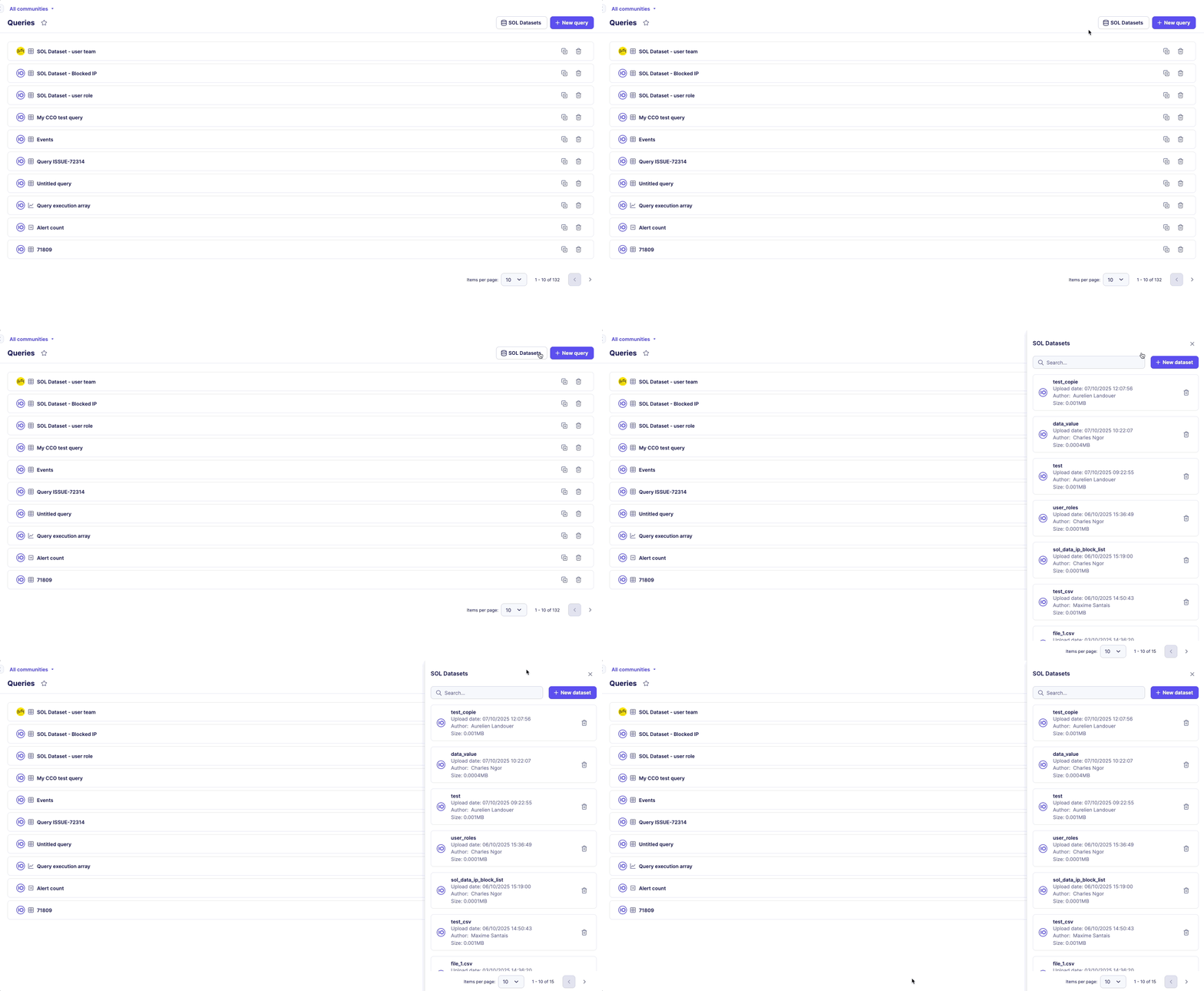
The datasets panel provides:
- Search functionality for finding specific datasets by their name
- Dataset cards displaying key metadata
- New dataset creation button
- Management controls for existing datasets
Dataset management interface
Each dataset is displayed as an information card containing:
- Dataset Name: Table name used in SOL queries
- Upload Date: When the dataset was imported (e.g., "09/30/2025 12:07:56")
- Author: User who uploaded the dataset (e.g., "John Doe")
- File Size: Dataset size in MB (e.g., "10MB")
- Actions: Delete option
The interface supports:
- Sorting: Datasets ordered by upload date (most recent first)
- Search: Filter datasets by name using the search bar
- Pagination: Navigate through large dataset collections
CSV import process
File requirements
CSV Import Requirements
Before importing your CSV file, ensure it meets these requirements:
- Column names follow snake_case format and are unique
- Column names are no longer than 128 characters
- The file is encoded in UTF-8 or ASCII
- The file size does not exceed 100 MB
Import workflow
Step 1: Initiate import
- Click + New dataset in the SOL Datasets panel
- The import modal opens with file selection interface
Step 2: File selection
- Drag and drop your CSV file or click Upload a file
- Browse and select your CSV file from the file system
- The system validates file format and requirements
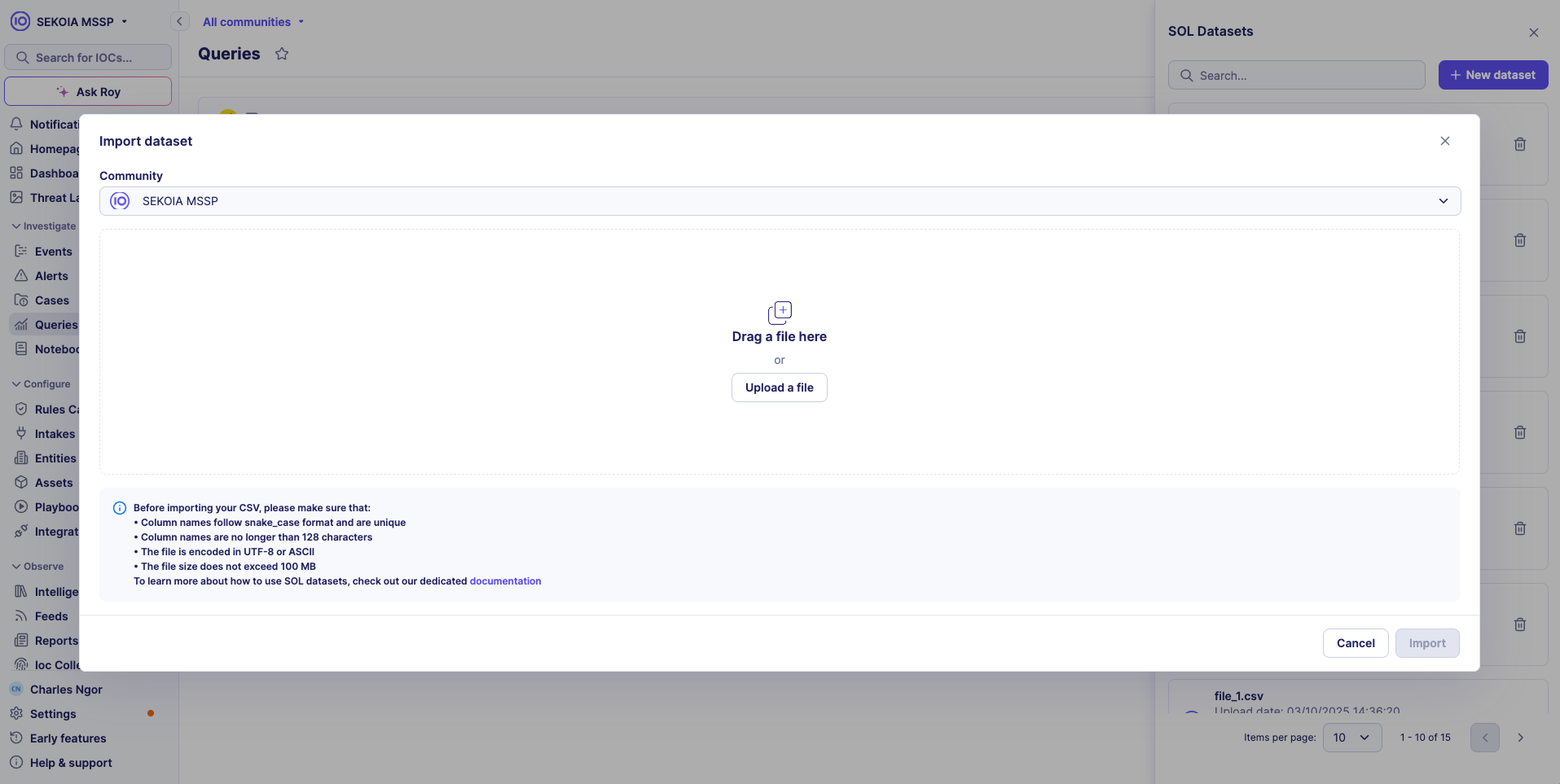
Step 3: File preview and validation
- After selection, the system displays file details and any validation errors
- Preview shows first 100 rows of data for verification
- Column names are automatically detected
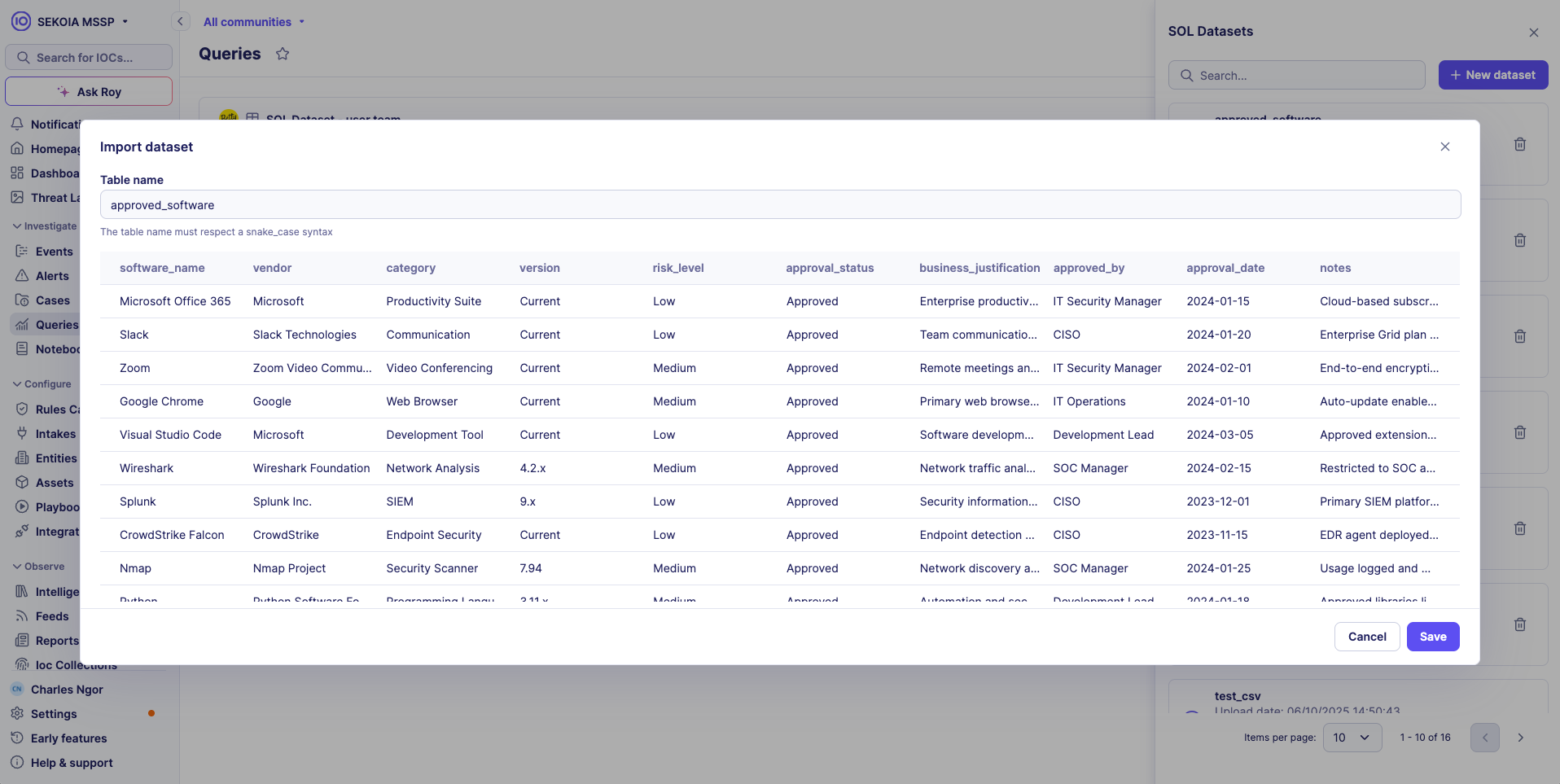
Step 4: Dataset configuration
- Dataset Name: Defaults to filename
- Community: Select target community (for multi-tenancy)
- Review settings and click Import
Step 5: Import completion
- The system processes the CSV file
- Dataset appears in the SOL Datasets panel
- Dataset is immediately available for use in SOL queries
Multi-tenancy and access control
SOL Datasets support multi-tenant environments with the following access patterns:
Shared access within community
- All datasets uploaded to a community are shared among all users within that community
- Any user can query any dataset within their community
- Dataset visibility is automatically scoped to the user's community
Sub-community limitations
- Sub-community users can only access datasets uploaded within their specific sub-community
- Sub-community users cannot access parent datasets
- This ensures data isolation and security between different organizational units
Parent community privileges
- Parent community users have access to their own datasets
- Parent tenant users can also access datasets from all sub-communities under their management
- This enables centralized oversight and cross-tenant analysis
Using datasets in SOL queries
Dataset discovery
SOL provides autocomplete functionality for imported datasets:
- Start typing in the SOL query editor
- Imported datasets appear in autocomplete suggestions
- Select the dataset name to include it in your query
Query integration
Imported datasets can be used like any other SOL data source:
Basic dataset query
authorized_domains
| limit 100
Detect unauthorized domains instantly:
events
| where timestamp > ago(24h) and url.domain != null
| where not url.domain in (authorized_domains | select url_domain)
| select timestamp, source.ip, url.domain
| limit 100
Correlate user activities with business roles:
events
| where timestamp > ago(24h)
| lookup user_roles on user.full_name == full_name into roles_list
| distinct user.full_name, roles_list.role
| limit 100
Best practices for dataset queries
Performance optimization
- Use
lookupinstead ofjoinwhen the imported dataset is small (< 10,000 rows) - Apply filters to main tables before joining with datasets
- Limit result sets using
limitoperator
Data quality
- Validate data consistency before importing
- Use consistent naming conventions across datasets
- Handle null values appropriately in join conditions
Query structure
// Filter main data source first
events
| where timestamp > ago(1h) and user.name != null

// Then join with SOL dataset. The modal object name is defined as 'dataset' here
| lookup user_roles_dataset on user.name == username into dataset

// Select relevant columns
| select timestamp, user.name, dataset.role, event.action
| limit 1000
Common use cases
Automatically identify and prioritize alerts from known malicious sources
Instantly correlate your alerts with external threat intelligence feeds to distinguish between noise and genuine threats. This query enriches recent alerts with threat context, helping analysts focus on the most critical security events first.
alerts
| where created_at > ago(24h)
| lookup threat_intel_dataset on source.ip == indicator_value into dataset
| where dataset.threat_type != null
| select rule_name, source.ip, dataset.threat_type, dataset.confidence
Understand event patterns across business units and system criticality
Transform raw security events into business-aware insights by correlating them with your asset inventory. Quickly identify which departments or critical systems are generating the most security events, enabling targeted investigation and resource allocation.
events
| where timestamp > ago(1h)
| lookup asset_inventory on host.name == hostname into dataset
| aggregate event_count = count() by dataset.department, dataset.criticality
| order by event_count desc
Detect privileged account activity and potential privilege escalation
Monitor administrative activities by correlating authentication events with your user directory. This helps identify unusual admin access patterns, shared accounts, or potential insider threats by tracking who is accessing what systems with elevated privileges.
events
| where event.category == 'authentication' and action.outcome == 'success'
| lookup user_directory on user.name == username into dataset
| where dataset.role == 'admin'
| aggregate count() by user.name, host.name
Troubleshooting common issues
Import failures
File format errors
- Issue: Column names contain spaces or special characters
- Solution: Convert to snake_case format (e.g., "User Name" → "user_name")
Encoding problems
- Issue: Special characters appear corrupted
- Solution: Save CSV file with UTF-8 encoding
Size limitations
- Issue: File exceeds 100 MB limit
- Solution: Split large files or filter to essential columns only
Query performance issues
Slow join operations
- Issue: Queries timeout or perform slowly
- Solution: Use
lookupinstead ofjoinfor smaller datasets
Memory limitations
- Issue: Large dataset queries fail
- Solution: Apply filters before joins, use
limitoperators
Data access problems
Dataset not found
- Issue: Dataset doesn't appear in autocomplete
- Solution: Verify dataset import completed successfully
Join mismatches
- Issue: Join operations return no results
- Solution: Check column names and data formats match exactly
Related articles
Getting Started & Overview
- SOL Overview: Sekoia Operating Language overview.
- SOL Getting Started: This tutorial walks you through writing your first SOL queries. By the end, you'll be able to search events, filter results, and save queries for reuse.
- SOL Best Practices: Best practices to use SOL effectively.
User Guides
- Create and Manage Queries: Create and manage queries using SOL.
- SOL How-to Guides: Learn how to use the main functions of SOL to reach your goals (aggregate data, join tables, use external data, build a query library...).
- SOL Query Examples: Get inspiration from our examples.
Technical Reference
- SOL Data Sources Reference: Technical references to access security data within the Sekoia platform thanks to SOL.
- SOL Functions Reference: Reference article regarding functions used in SOL.
- SOL Operators Reference: Reference article regarding operators used in the SOL language.