Case details
The case details page brings together all information related to a single investigation. This reference describes every section, tab, and field available on that page.
Header
The header is visible at the top of the case details page at all times. It displays the following information:
| Element | Description |
|---|---|
| Case name | The title given to the case at creation. |
| Creator | The analyst who opened the case. |
| Last edition date | The date and time of the most recent change. |
| Case ID | A unique identifier. Click it to copy the value to your clipboard. |
| Priority | The current priority level (for example, High, Medium, Low). |
| Status | The current lifecycle stage (for example, Open, In progress, Closed). |
Tabs
The case details page is organized into five tabs: Details, Alerts, Tasks, Events, and Graph investigation.
Details tab
The Details tab contains the following:
- Authors, community, and creation and edition dates.
- A Markdown-enabled description field.
- A timeline of analyst comments.
Alerts tab
The Alerts tab lists all alerts attached to the case. From this tab you can:
- Click Add alerts to attach additional alerts.
- Open any listed alert to view its full details.
Tasks tab
The Tasks tab lets you create and manage tasks and subtasks associated with the case. You can assign tasks to analysts and track their completion status.
Events tab
The Events tab lists all events associated with the case, using the same display as the Events page.
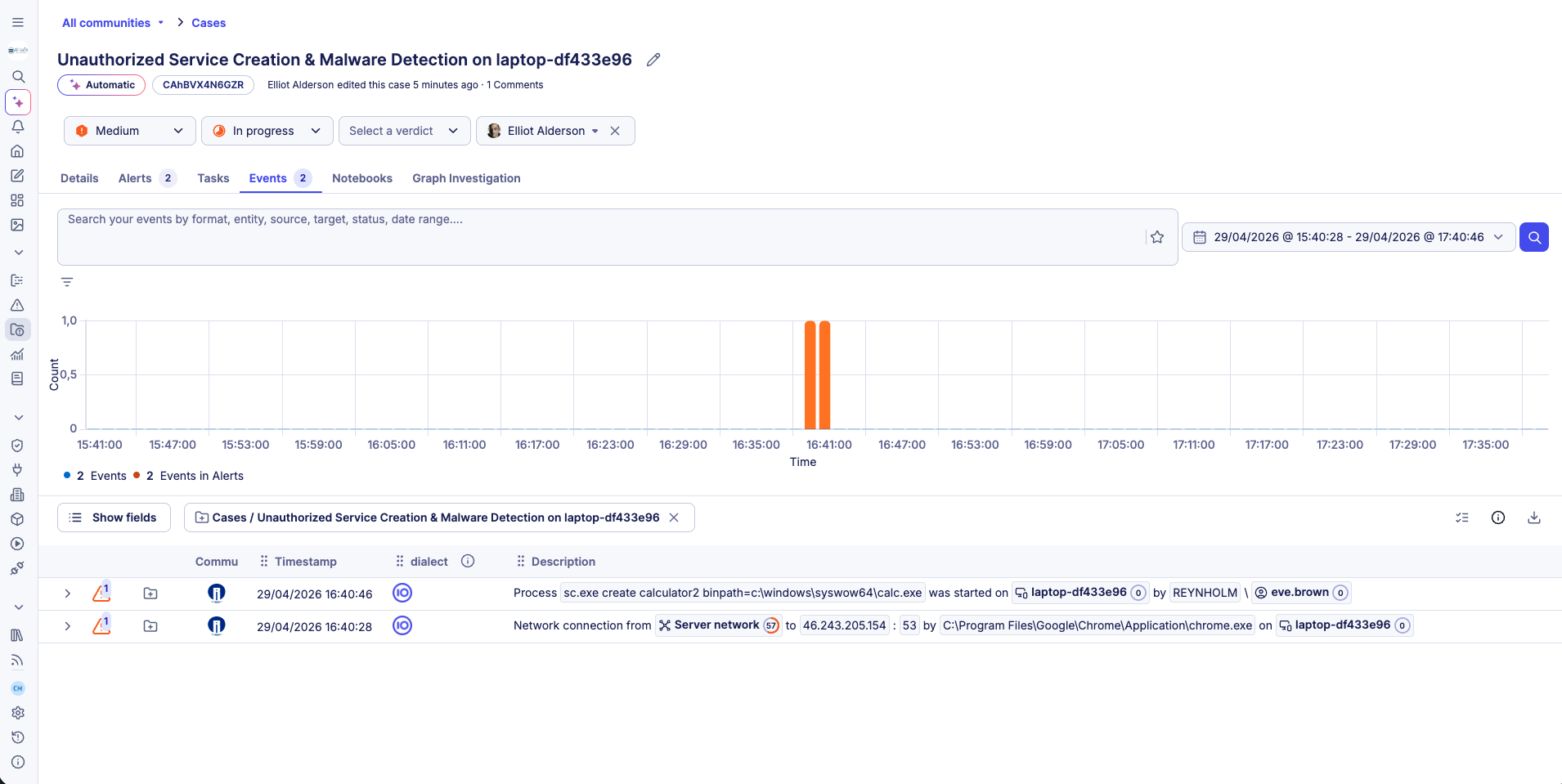
Events appear in this tab when they:
- Raised an alert that was added to the case.
- Were directly added to the case.
When you interact with individual values in the event list, the following options are available:
| Action | Description |
|---|---|
| Filter for | Restricts the view to events matching that value within the case. |
| Filter out | Excludes events matching that value within the case. |
| Search events with this value | Runs a broader search across the case timeframe. |
To work with multiple values simultaneously, click Toggle value selection at the top of the event list. You can then select multiple values and use them to:
- Create a Sigma rule.
- Search events with these values.
Search events by value
This feature searches all events that occurred within the case's timeframe (plus or minus one hour). The search query is built automatically from the values you select.
To search events by value:
- Navigate to the Events tab of the case.
- Click Toggle value selection at the top of the event list.
- Select the values you want to search for.
- Click Perform a search.
A side panel opens with the search results so you can investigate without leaving the case page.
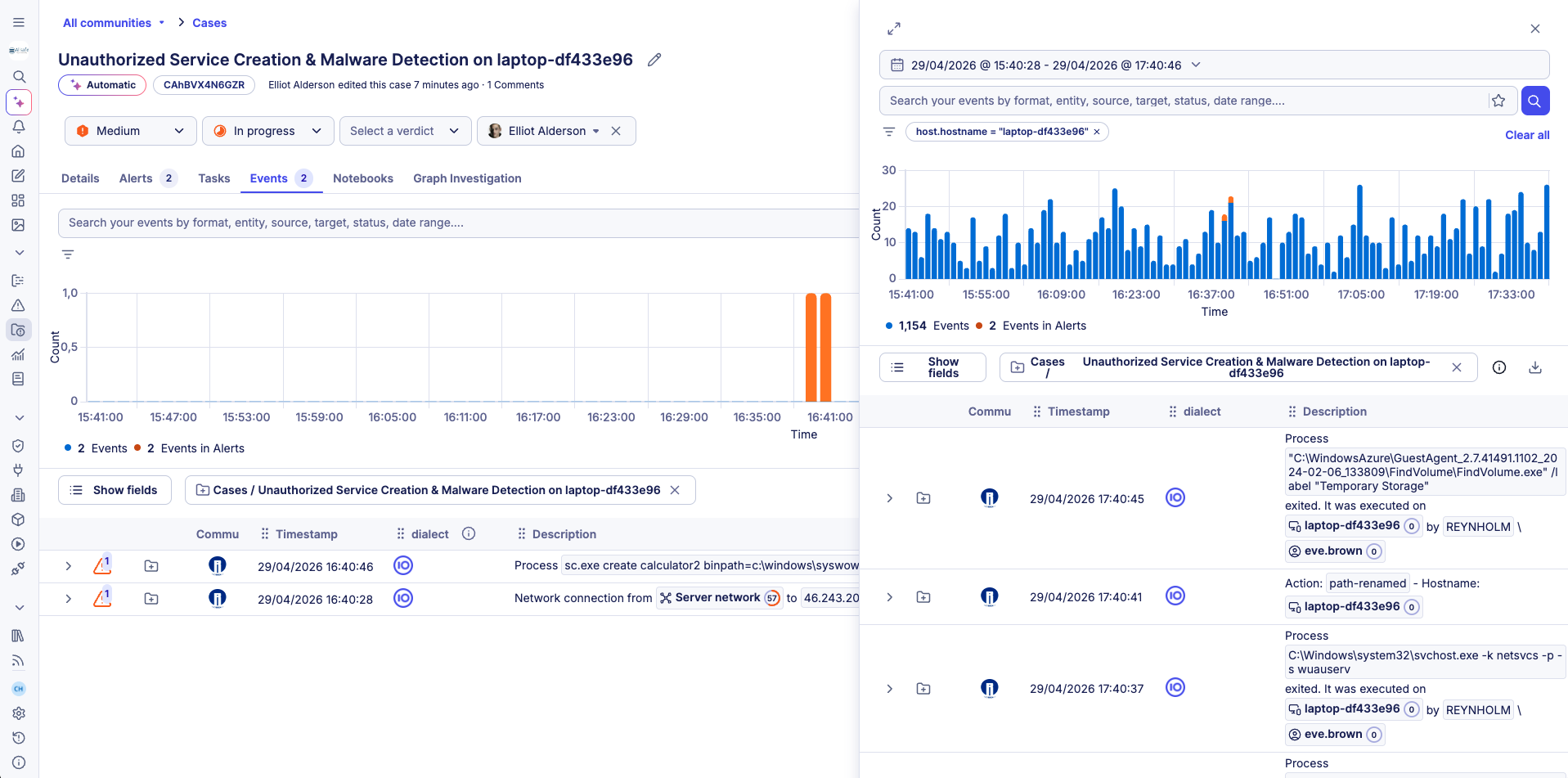
Graph investigation tab
The Graph investigation tab provides an interactive visualization of the case's alerts and events. For full documentation on how to use and configure the graph, see Graph investigation.
Related articles
- Cases: Overview of what cases are and how they are structured.
- Create a case: Step-by-step instructions to open a new case and attach alerts to it.
- Manage cases: How to filter, sort, bulk-edit, and edit cases.
- Graph investigation: How to use the interactive graph to correlate observables and threat intelligence.
- Case custom fields: How to add and manage structured metadata fields on a case.
- Events: How to explore events and run contextual searches.